Find the conversation you need
Views, search, the channel filter and the Unreplied switch narrow the inbox down to the chats you still have to answer.
Quick start
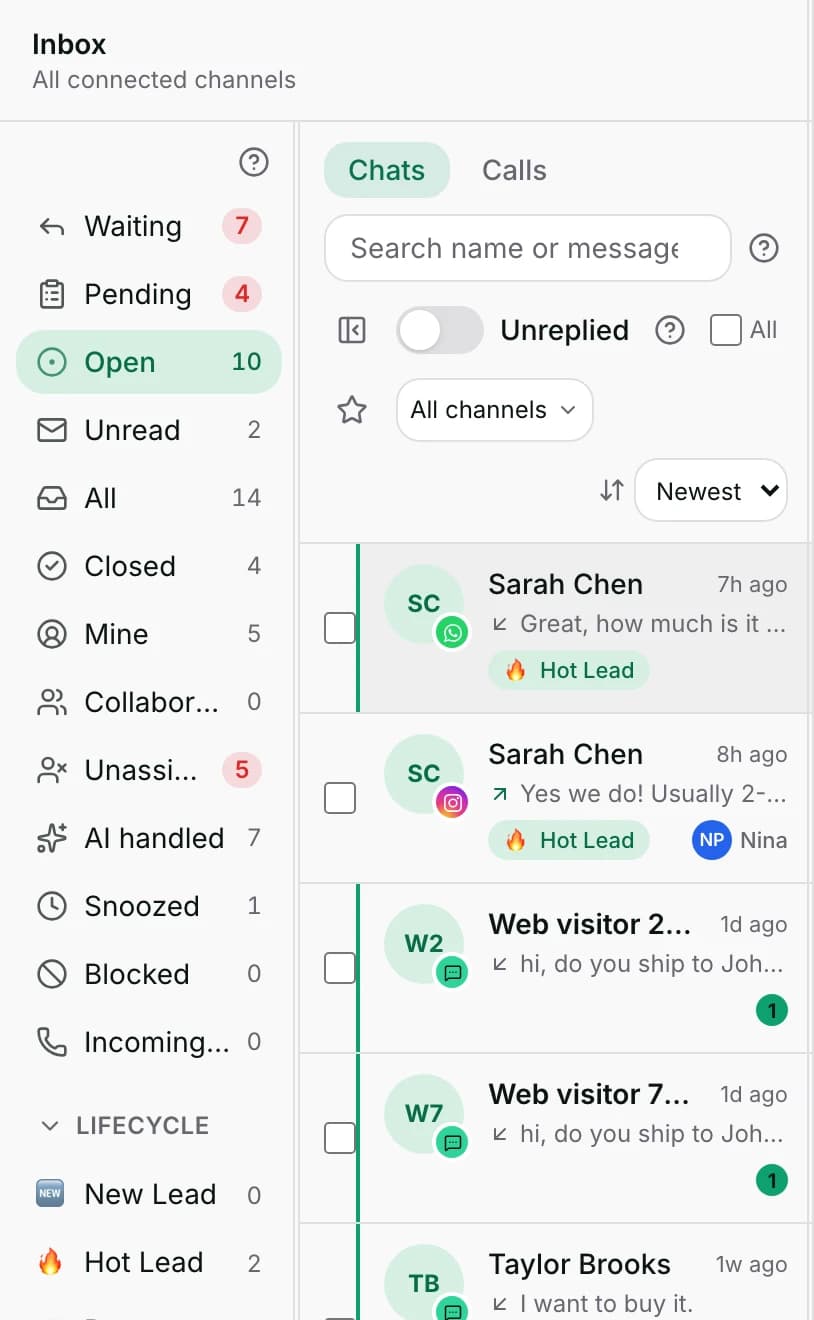
- Open Inbox. The list opens on Open. In the app, tap the Inbox tab.
- Click Waiting in the views on the left (in the app, Open inbox menu): chats where the customer wrote last.
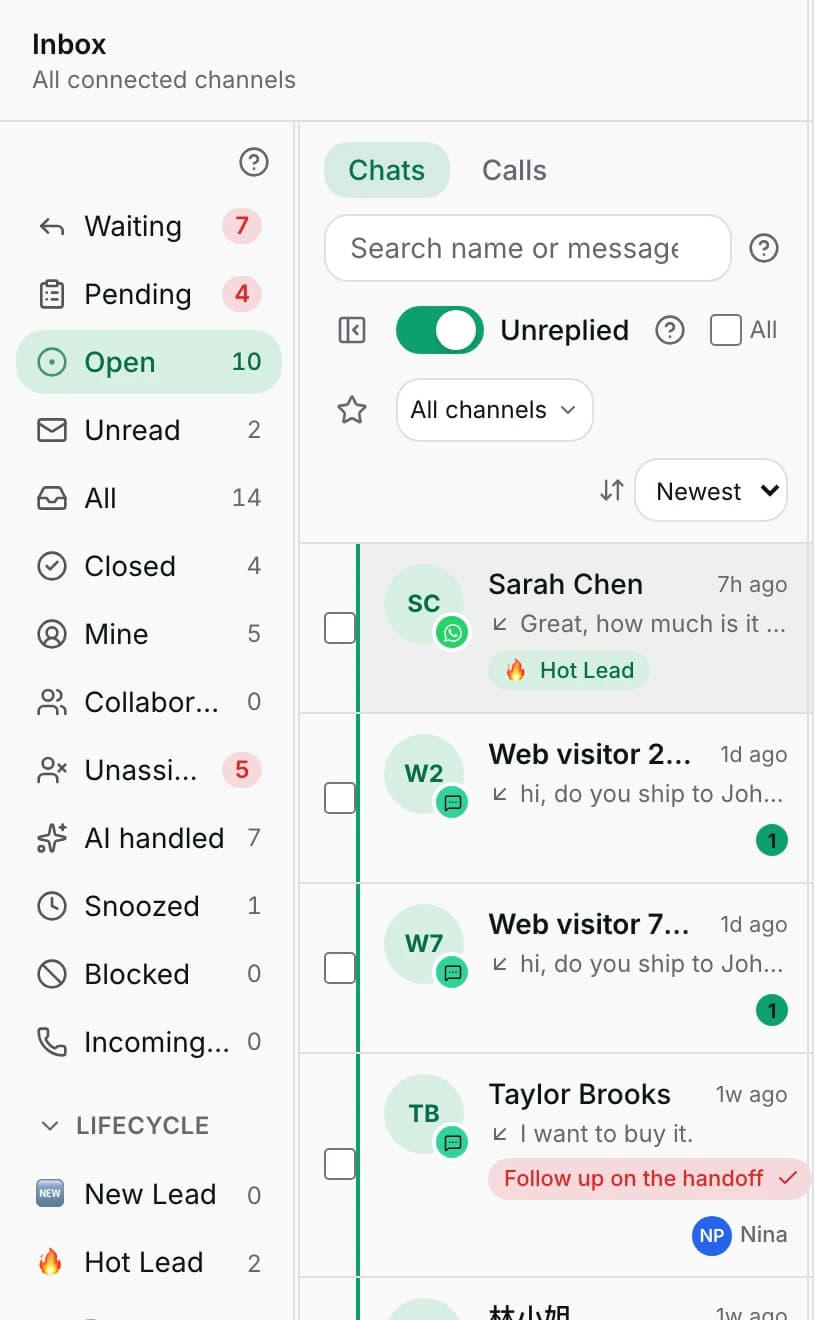
- Switch on Unreplied to drop everything a teammate or the AI has already answered.
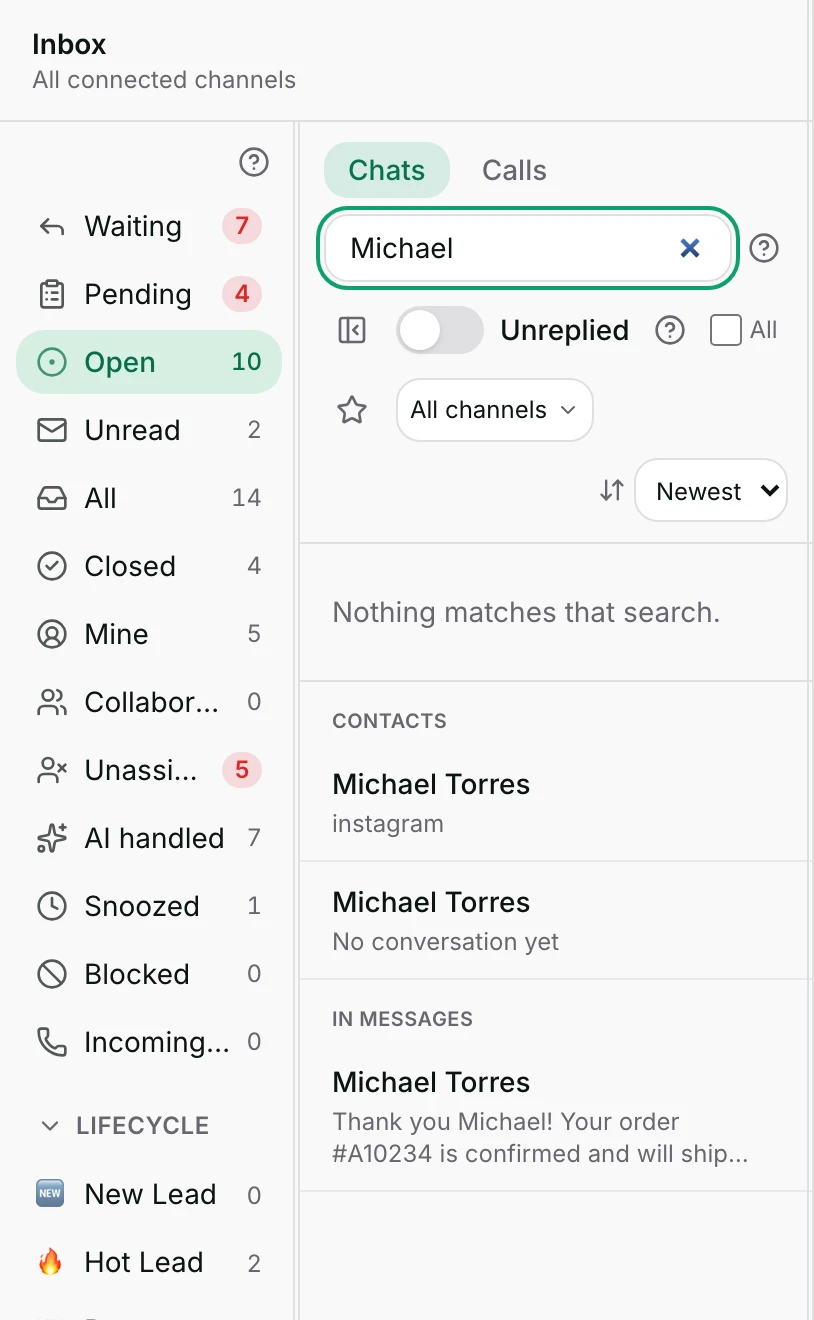
- Type a name in Search name or messages…; after two letters it searches every conversation you can see.
- Click a row to open it. Opening it can show the customer their last message as read.
Watch out
- The list holds only the most recent conversations. On the web, find an older one by searching rather than scrolling.
- The Unreplied switch does nothing in the Unread view: every unread chat stays listed there.
Details
Getting here
Inbox → the views rail on the left, with Show views / Hide views to fold it away; the search box sits above the list. In the app: the Inbox tab → Open inbox menu for the same views in a drawer.
Before you start
- Any member can read the inbox. What you see is limited by your own access.
- A member who sees only their own contacts, or only their team's, gets neither All nor Unassigned on the web, and no teammate or team groups in the rail.
- At least one connected channel, so there are conversations to find.
- Nothing else has to be set up. Lifecycle stages, teams, contact tags and saved views each add their own group to the rail once they exist.
How it works
- The rail starts with twelve fixed views: Waiting, Pending, Open, Unread, All, Closed, Mine, Collaborating, Unassigned, AI handled, Snoozed and Blocked.
- Waiting is the queue that matters most: the customer wrote last and nobody has answered.
- Pending lists conversations with a task due now. It is a task queue, so a closed or snoozed chat with a due task still appears.
- Open is the working queue: not closed, not snoozed. All adds closed chats. Closed shows only closed ones.
- A snoozed conversation is left out of the working views until its time is up, or until the customer writes. It shows under Snoozed, under Pending when a task on it is due, and under Unread if you marked it unread.
- A blocked contact's chats appear only under Blocked, whatever else is true of them.
- Mine is what is assigned to you. Collaborating is what somebody pulled you into without giving it to you.
- AI handled lists chats an AI agent is answering — not merely chats no person has taken.
- You can drag the fixed views into the order you like. The order is saved for you alone.
- Below them the rail adds a group for each thing your workspace has: Lifecycle, Contact tags, Custom, Team Inbox, Team and AI Agents.
- AI Agents appears only when the workspace has more than one AI agent.
- A stage you do not want on screen is hidden with Hide {name}. The rail then shows {count} hidden, and Show {name} brings it back.
- Unreplied keeps only chats where the customer wrote last. Switching it off brings the answered ones back.
- In the Unread view the Unreplied switch does nothing at all. That view lists every chat its number counts, answered or not.
- The channel filter above the list narrows to one number or page, not just to a channel type, so a workspace with four WhatsApp lines can pick one.
- Sorting offers Newest and Oldest. Pinned chats always sit on top, newest pin first, whichever you pick.
- Typing in the search box filters the loaded list by contact name as you type.
- After 2 characters it also searches the whole workspace and adds two groups under the list: Contacts, which matches name, phone or e-mail, and In messages, which matches message text.
- Those two groups leave out anything already visible in the list above, so a hit is never shown twice.
- Dragging a conversation card onto a lifecycle stage (Drop on a lifecycle stage) moves the contact to that stage.
When it fails
- The list can only show what it loaded. When the workspace has more conversations than that, the foot of the list says Showing the {count} most recent conversations. Search to reach older ones.
- A view that matches a very large number of chats renders the first few hundred and says Showing {shown} of {total} — refine the filters to narrow this view.
- Message search timed out. Contacts above still match. means the message search gave up. The contact matches beside it are still good — search a longer, more distinctive phrase.
- Couldn’t search message history right now. is the same search failing outright. Contact matches still show.
- A saved view whose filters no longer make sense shows This saved view is invalid — edit it to fix its filters. and stays empty until it is edited.
- With a channel filter on and nothing to show, the list says Nothing on {channel} in this view.
- Could not load conversations. Please try again shortly. is the list itself failing to load. Refresh the page.
- Dragging a conversation that has no contact onto a stage is refused: This conversation has no contact, so it can’t be staged.
- Anything else that goes wrong while dragging says Could not move the conversation — try again.
Limits
- The inbox does not hold every conversation you ever had. The web loads only the most recent ones, and the app also pages in older open conversations; anything else is found by searching, not by scrolling.
- One view renders only the first few hundred rows at a time. The count on the rail covers every loaded conversation the view matches; the list is the part you can see.
- The search box above the list matches contact names only.
- Message text is searched only by the workspace-wide search under the list, and only from 2 characters up.
- Message search reads message text. It does not read a file's contents or its name, and it does not read a voice note nobody has transcribed.
- The rail cannot be filtered by two things at once. To combine a channel, an assignee and a stage, save a custom view instead.
- Sorting offers only newest and oldest. There is no sort by name, by channel, or by how long a chat has been waiting.
- The Unreplied switch has no effect in the Unread view. It is not switched off there — it simply changes nothing.
- Hiding a lifecycle stage hides the rail row only. The conversations stay where they are and keep their stage.
Best practices
- Work from Waiting with Unreplied on. That is the shortest honest list of people who are still waiting for you.
- Leave Open as your resting view. All includes closed chats and grows forever.
- Give the team one shared vocabulary: Waiting means the customer spoke last, Pending means a task is due, Unassigned means nobody owns it.
- When the foot of the list says the view is capped, narrow it instead of scrolling. A saved view is faster than a long scroll.
- Search by phone number when two customers share a name. The Contacts group matches phone and e-mail, not only the name.
Use cases
- Morning triage: Waiting, Unreplied on, and the channel filter set to your busiest WhatsApp number.
- A teammate is away: open Team, pick them, and see what is sitting in their name.
- A customer says they wrote last week and got no answer: search their phone number and open the Contacts hit.
- Checking the AI overnight: AI handled, sorted Oldest, to read the first chats it answered.
- Finding a chat about a refund whose customer you cannot name: type the word and read the In messages group.
FAQ and troubleshooting
- What is the difference between Waiting and Unread?
- Waiting means the customer wrote last and nobody has answered. Unread means you personally have not read it — it includes chats you marked unread yourself, and it clears when you open them.
- Why did rows disappear when I switched on Unreplied?
- Unreplied keeps only chats where the customer's message is the newest one. Everything a teammate or the AI has already answered drops out. Switch it off to bring them back. In the app the empty state offers Show replied conversations, which does the same thing.
- A conversation I closed is gone from Open. Where is it?
- Under Closed, and under All. Closing removes it from the working queue; it deletes nothing.
- I cannot find an old conversation by scrolling.
- On the web the list holds only the most recent conversations; the app adds older open ones, but not closed ones. Type the contact's name, phone or e-mail in the search box and open the hit under Contacts.
- The rail shows a number bigger than the rows I can count.
- The number counts every loaded conversation the view matches. The list renders the first few hundred and says so at the foot. Narrow the view to see the rest.
- Why is a snoozed conversation not in Open?
- Snoozing parks a conversation until its time, or until the customer writes. Until then it is out of Open and the other working views. Snoozed shows it, and so does Pending when a task on it is due.
Reading this with an AI assistant? Plain Markdown version.