Assign, route to a team, add collaborators
Decide who owns a conversation, which team it belongs to, and who else should see it and get its notifications.
Quick start
- Open Inbox and click a conversation. An owner, admin or agent can change ownership.
- Click Assign to me in the header to take it, or pick a teammate from the assignee picker.
- Pick a team in the team dropdown (No team until set) when the whole team should see it.
- Open Collaborators and add one more person. None of this sends the customer anything.
- Tell the person yourself: assigning notifies nobody, and adding a collaborator does.
Watch out
- Assigning notifies nobody. If somebody must be told now, tell them, or add them as a collaborator.
- Assignment does not check channel access, so a teammate can be given a chat they cannot open.
Details
Getting here
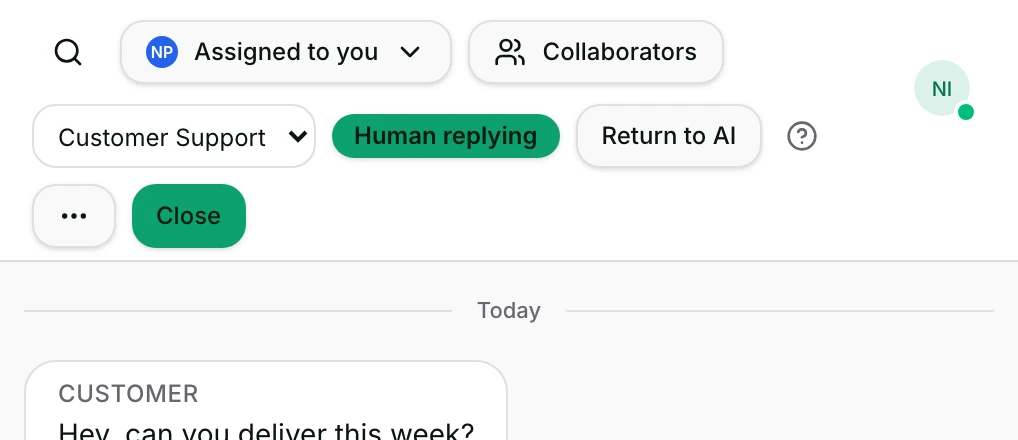
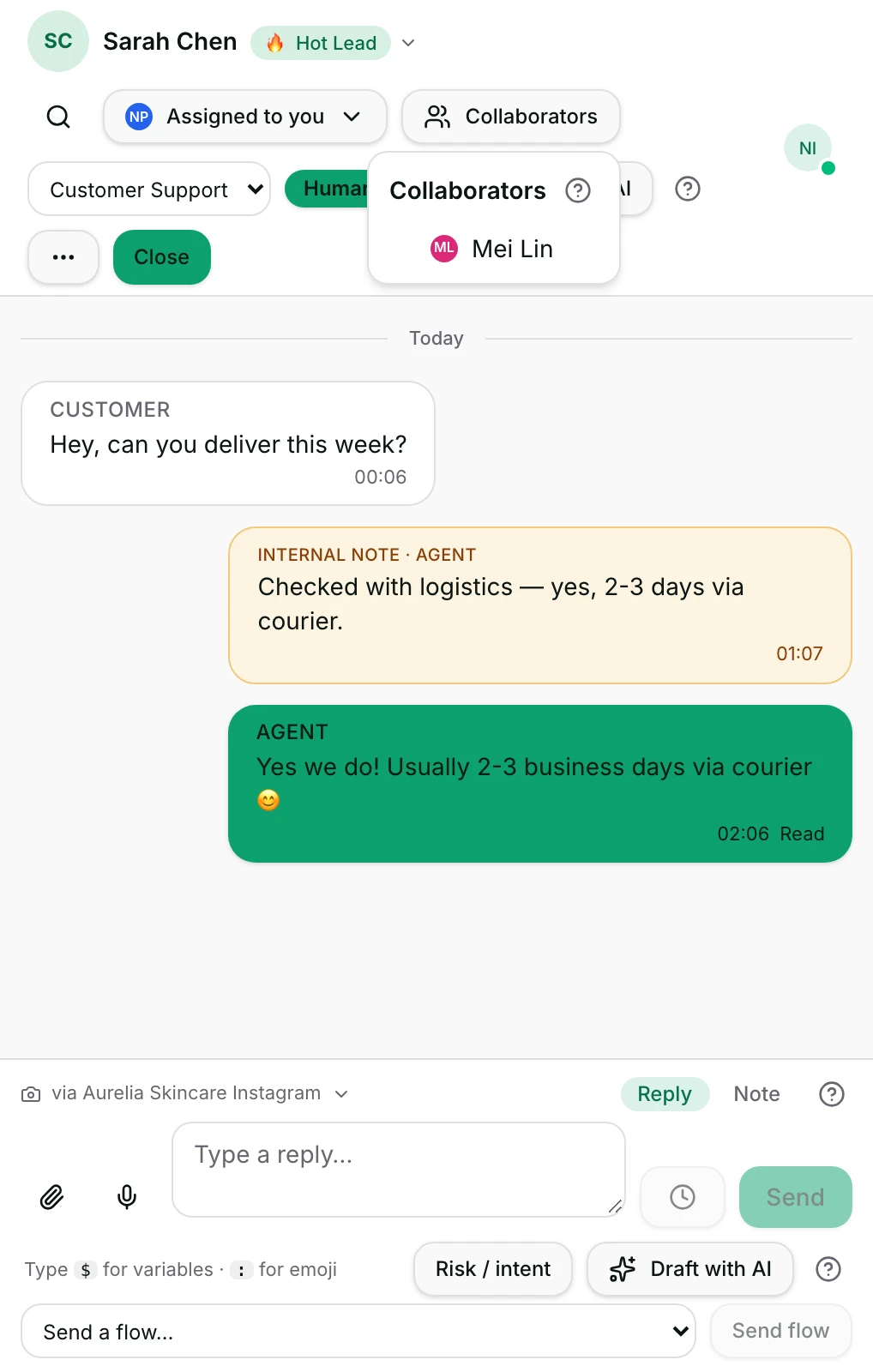
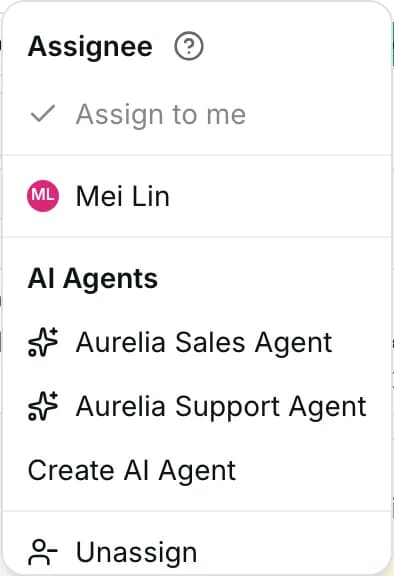
Inbox → open a conversation → the header carries Assign to me or the assignee picker, the team dropdown, the AI agent picker and Collaborators. A list row's Conversation actions menu has Assign to and Collaborators too. In the app: the same controls in the conversation header, and a long press on a row for Assign user and Collaborators.
Before you start
- An owner, admin or agent can change who owns a conversation. A viewer cannot, and is offered only the personal actions — pin, mute and View contact details.
- The person you assign has to be a member of this workspace. A name from anywhere else is refused.
- The team dropdown needs at least one team; Collaborators needs at least one other member who can reply.
Fields
- Assign to me
- Makes you the assignee in one click.
- Assignee picker
- Unassigned, or one named teammate.
- Limits: Only members of this workspace.
- Route to team
- No team, or one of the workspace's teams. Independent of the assignee.
- Default: No team
- AI agent
- Auto (routing rules), or one named AI agent for this conversation.
- Default: Auto (routing rules)
- Limits: Does not change who holds the conversation — that is the owner control at the top.
- Collaborators
- Teammates pulled into this conversation without taking it from its assignee.
- Limits: Only members who can reply. The assignee is not offered; they already have it.
How it works
- Assigning writes the owner onto the conversation. The row then reads Assigned to you or Assigned to {name}, and the chat appears under Mine for that person.
- A line is added to the conversation — {name} took the conversation, {name} assigned the conversation to {name} or {name} unassigned the conversation — so the history shows how it got there.
- Unassign clears the owner and sends the chat back to Unassigned. Nothing else about it changes.
- Assigning somebody does not notify them. Whether a later customer message reaches them depends on their own notification setting, their availability, and whether they muted the chat.
- Route to team is a separate label from the assignee: a conversation can belong to a team and to nobody in particular, or to a person and no team.
- Routing to a team does not pick an individual inside it. Somebody still has to take the chat.
- The AI agent picker decides which AI agent handles this one conversation. Auto (routing rules) puts it back to the ordinary rules from the next customer message on.
- Picking a named AI agent does not take a conversation from a person who took it over. It does end a workflow's pause and the wait after a person's reply, so on a conversation the AI owns, the AI may answer the waiting message at once. Auto (routing rules) changes neither.
- Collaborators pulls a teammate in: Collaborators see this thread and get its notifications; the assignee keeps it.
- A collaborator finds the chat again under the Collaborating view, and gets a notification in the product when they are added.
- Only members who can reply are offered as collaborators, and the assignee is left out of the list because they already have it.
- Anybody who can change the conversation can remove a collaborator, and a collaborator can always remove themselves.
- A teammate whose notifications are set to assigned-only still gets this conversation's notifications while they are a collaborator.
- Assigning by hand ends any running workflow whose trigger has When a user is manually assigned ticked under Set exit conditions. Every other running workflow carries on.
When it fails
- Assign failed with Could not change the assignee. — the owner did not change. The chat keeps whoever it had.
- That teammate isn’t a member of this workspace. — the person you picked has left, or was never in this workspace.
- Team not updated with Could not change the team. — the team did not change.
- AI agent not updated with Could not change the AI agent. — the conversation keeps the agent it had.
- You don’t have permission to change this conversation. — you are a viewer, or not a member of this workspace.
- Could not add collaborator and Could not remove collaborator — the collaborator list is unchanged.
- Nobody else can reply in this workspace. — there is no one to add: everybody else is a viewer, or you are the only member.
- In the app, Team routing isn’t enabled on this workspace yet. means the workspace has no teams to route to.
- That action could not be completed. is the row menu's general failure. Nothing was changed.
Limits
- Assigning sends the customer nothing. They see no change at all.
- Assigning does not close, snooze or tag the conversation.
- Assigning does not stop the AI. While the AI holds the conversation, it may still answer, even after you assign it to someone.
- There is no assigned-to-you notification. Nothing is pushed at the moment a conversation is assigned.
- Routing to a team is a label, not a shared turn list: it does not hand the chat to a member of that team.
- A collaborator is not a second assignee. The chat stays under the assignee's Mine, and it stays in their name everywhere.
- Assignment does not check channel access. A teammate whose access does not cover this channel can be given a conversation they cannot open.
Best practices
- Assign before you escalate. A conversation somebody owns is a conversation somebody answers.
- Use Route to team for the shape of the work — sales, support — and the assignee for the person doing it.
- Add a note saying why you assigned it. The next person should not have to ask the customer again.
- Use Collaborators rather than reassigning when you only want a second opinion; the owner stays clear.
- Keep Unassigned at zero at the end of the day. It is the queue nobody is watching.
Use cases
- A payment question arrives: Assign to me, answer, and add a note with the order number.
- Sarah Chen asks for someone who speaks Malay: assign the teammate who does, and add a note saying why.
- A complicated refund: route it to the support team so the whole team sees it in Team Inbox.
- You are going off shift: unassign what you have not finished, so it goes back to the shared queue.
- Michael Torres asks a technical question: keep it, and add the teammate who knows the answer as a collaborator.
FAQ and troubleshooting
- Does the customer know I assigned the conversation to someone?
- No. Assignment is internal. Nothing is sent to the customer.
- Does the teammate get a notification when I assign them a conversation?
- Not for the assignment itself — nothing is pushed at that moment. The chat appears under their Mine. If somebody has to be told now, tell them, or add them as a collaborator, which does notify.
- What is the difference between assigning and routing to a team?
- Assigning names one person, who then sees it under Mine. Routing names a team, which files it under Team Inbox without choosing anybody inside it.
- What does a collaborator see?
- The whole conversation, and its notifications. They can reply. The chat stays in the assignee's name and appears for the collaborator under Collaborating.
- Does picking an AI agent take the conversation away from me?
- Not if you took it over. A named agent does end a workflow's pause and the wait after a person's reply, so on a conversation the AI owns, the AI may answer the waiting message at once.
- I assigned a conversation and the teammate says they cannot open it.
- Assignment does not check channel access. If their access does not include that channel they will not see it — assign somebody whose access does, or have an admin widen theirs.
Reading this with an AI assistant? Plain Markdown version.