Take over from the AI, and hand it back
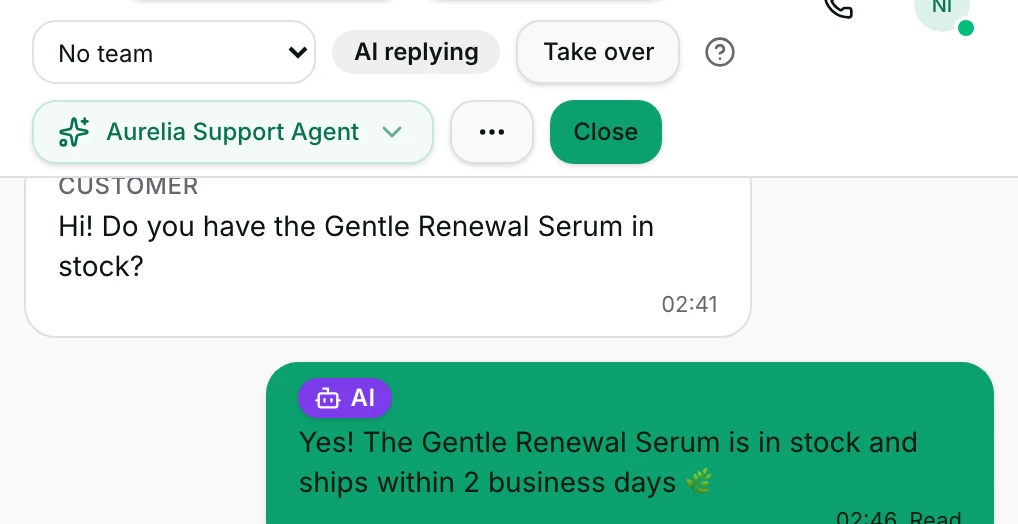
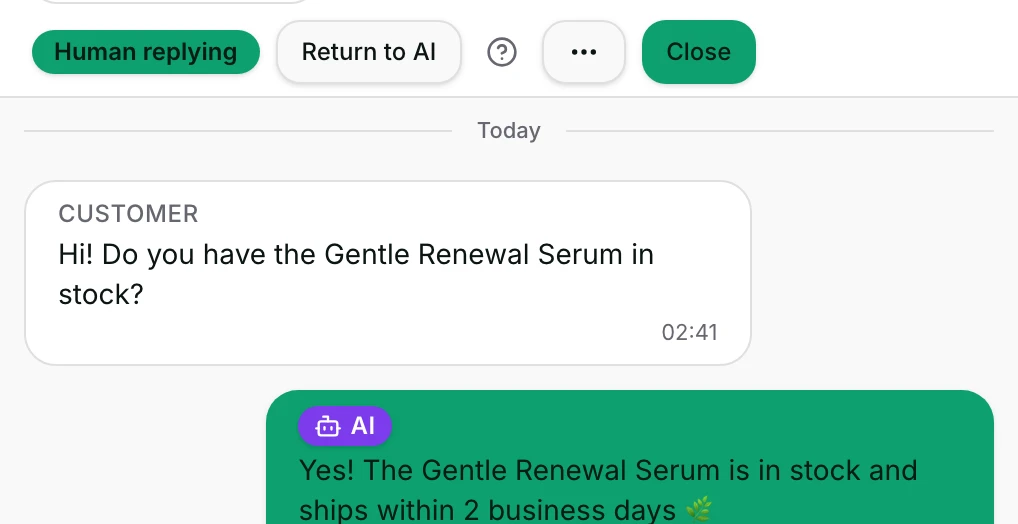
The badge at the top says who is answering right now, and one button moves the conversation between the AI and a person.
Quick start
- Open Inbox and click a conversation. Owners, admins and agents see this control.
- Read the badge at the top — it says who answers the customer's next message.
- Click Take over to answer as yourself. On the web, the chat is also assigned to you.
- Reply as usual. Your reply goes to the customer; the AI stays quiet while you hold it.
- Click Return to AI when you are finished — in the app, Hand to AI.
Watch out
- AI replying describes this conversation only. The AI also needs the workspace's and the channel's AI switches to be on.
- In the app, taking over does not assign the chat to you. On the web it does.
Details
Getting here
Inbox → open a conversation → the badge and the button at the top. In the app: the button sits in the conversation header, and the same badge is in the bar just under it.
Before you start
- An owner, admin or agent can move a conversation between the AI and a person. A viewer cannot.
- Your access has to cover this conversation. If you cannot see it, you cannot take it over.
- There is nothing to take over on a channel with no AI agent — the badge says so.
Fields
- AI replying
- The AI answers the next customer message, as long as the workspace's and the channel's AI switches are on.
- AI paused — human requested
- The AI stays quiet: the customer asked for a person, or the AI promised one.
- AI paused by workflow
- The AI stays quiet: a workflow's pause step is holding it. Nobody was alerted.
- AI waiting — a person replied
- The AI stays quiet for a while because a person answered on this conversation.
- Human replying
- A person owns the conversation. The AI does not answer at all.
- No AI on this channel
- No AI agent is attached, so nothing automatic will answer.
- Limits: The button is still there; pressing it only records that a person holds the conversation.
- Owned by another app
- Another connected app holds this conversation.
- Limits: No button. Reclaiming it is done in that app, not here.
How it works
- Take over hands the conversation to a person and stops the AI answering. On the web it also assigns the conversation to you and cancels any reply the AI was about to send; in the app it changes who answers only.
- A line is added to the conversation — {name} took over from AI — so the history shows the handover.
- Return to AI gives it back. It clears both pause reasons at once, whichever was showing, and adds {name} returned the conversation to AI.
- Handing back also ends the quiet period a person's reply started. If the customer's last message is still unanswered and less than a day old, the AI then answers it. It stays quiet when a workflow is waiting on that message, when the message has no text for the AI to read, or when an AI switch or the messaging window stops the reply.
- Resume AI is the same button under a different name. It appears when the badge says the AI is paused or waiting, because resuming is the useful move there.
- AI paused — human requested starts when the customer asks for a person, or when the AI's own answer promises that somebody will take over. A workflow's Escalate step sets the same pause.
- AI paused by workflow starts when a workflow's Pause AI / Unassign step runs. Nobody is alerted for it.
- Sending a reply yourself clears AI paused — human requested. The AI then waits instead, because a person has spoken on the conversation.
- After a person replies the AI waits 4 hours before answering again on that conversation. Resume AI ends the wait immediately.
- Taking a conversation over never clears a workflow's pause. Return to AI, Resume AI and picking a named AI agent do, on purpose.
- Owned by another app shows no button. Reclaiming a conversation from another app is done in that app, not here.
- The badge, the button and the composer all read the same state, so one click updates the whole conversation at once.
- On the web, the composer carries its own reminder — AI Agent is handling this conversation. Take over to reply as yourself. — with a Takeover button. The app has no such reminder.
- The pause is per conversation. It says nothing about any other chat, and it does not switch the AI off anywhere else.
- The workspace's AI switch is under Settings → AI Agent, and each channel has its own under Settings → Channels.
When it fails
- Could not update thread ownership. — nothing changed. The badge goes back to what it was, and the AI is in the same state as before.
- Could not resume the AI. — the quiet period was not ended. The chat stays as it was.
- A conversation owned by another app is refused outright; the badge stays Owned by another app.
- A member whose access does not cover this conversation cannot change its owner, even from inside it.
- On the web, a viewer sees no badge and no button at all. In the app a viewer sees who is answering, but gets no button.
- When the channel has no AI agent, the badge reads No AI on this channel. The button is still there; pressing it marks the conversation as held by a person, and on the web assigns it to you — no AI was answering to be stopped.
Limits
- Taking over does not stop a workflow that is running on this conversation. Stopping one is done from Active workflows.
- Taking over does not close the conversation, and it does not tell the customer anything.
- Pausing or resuming the AI here changes this one conversation. It is not a switch for the workspace, the channel or the AI agent.
- Taking over is not a way to stop the AI everywhere. A workspace-wide or channel-wide stop is a setting, not this button.
- Handing back clears the two pauses only. It does not change the assignee, so a chat a web takeover put in your name stays there.
- The badge describes who answers, not who is assigned. A conversation can be assigned to you and still be answered by the AI.
Best practices
- Read the badge before you type. A conversation that says AI replying may answer the customer a second time after you.
- Take over before writing anything difficult, so the AI cannot speak over you mid-conversation.
- Hand back when you are done. A conversation left in a person's hands stays quiet until somebody notices it.
- When the badge says AI paused — human requested, treat it as a queue: the customer asked for a person and is waiting for one.
- If the badge says No AI on this channel and you expected an AI, the fix is in the channel's settings, not in this button.
Use cases
- Sarah Chen asks something the AI keeps answering wrongly: take over, answer, hand back.
- A customer types "agent please": the badge turns to AI paused — human requested, and whoever is on shift picks it up.
- A workflow paused the AI mid-flow and the customer has gone quiet: Resume AI puts it back on duty.
- You answered one message on a conversation the AI owns: the badge reads AI waiting — a person replied, so the AI does not talk over you.
- A complaint arrives at 9pm: take over, promise a reply in the morning, and leave it in your name overnight.
FAQ and troubleshooting
- Why is the AI paused on this conversation?
- One of three things: a person was asked for — by the customer, the AI's own answer or a workflow's Escalate step — a workflow's pause step ran, or somebody replied by hand. The badge names which.
- How do I get the AI answering again?
- Click Resume AI, or Return to AI when a person holds the conversation. Both clear the pause. If the customer's last message is still unanswered and less than a day old, the AI then answers it. It stays quiet when a workflow is waiting on that message, when the message has no text for the AI to read, or when an AI switch or the messaging window stops the reply.
- Does taking over stop a workflow that is running?
- No. A running workflow carries on. Stop it from Active workflows in the contact panel if it should not continue.
- Does pausing the AI here switch it off for everyone?
- No. It is one conversation. Every other chat keeps whatever it had.
- Why does the composer not offer me Takeover?
- That reminder is on the web only, and is shown only while an AI agent is really answering. It is hidden when the channel has no AI agent, when the contact is blocked, and when the channel cannot send. The badge at the top is still there, with its own button.
- I replied and now the badge says the AI is waiting. For how long?
- 4 hours from your reply, unless somebody ends it sooner with Resume AI.
- Does taking over assign the conversation to me?
- On the web, yes: taking over makes you the assignee as well. In the app it does not, so assign the chat separately if it should be yours. Handing back to the AI never changes the assignee.
Reading this with an AI assistant? Plain Markdown version.