Let the AI draft, polish or brief you
Four AI helpers read the conversation and give you text or a short briefing. You still press send yourself.
Quick start
- Open Inbox and click a conversation. In the app, tap + beside the reply bar.
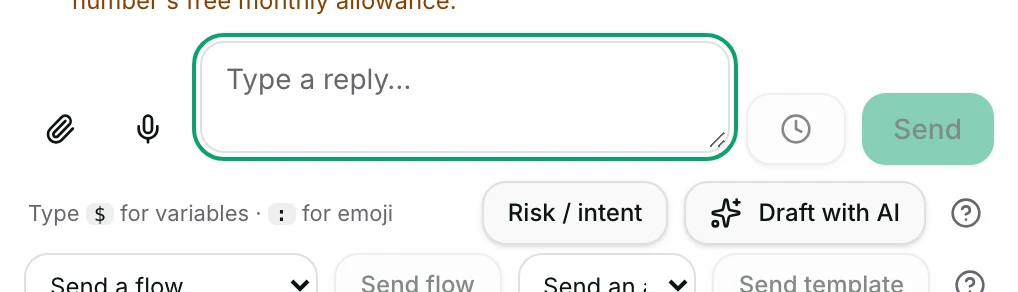
- With the box empty, click Draft with AI (in the app, tap AI draft). The draft appears in the box.
- Read the draft against the conversation. Nothing has been sent yet.
- Edit anything you want, then press Send. Only that press sends it to the customer.
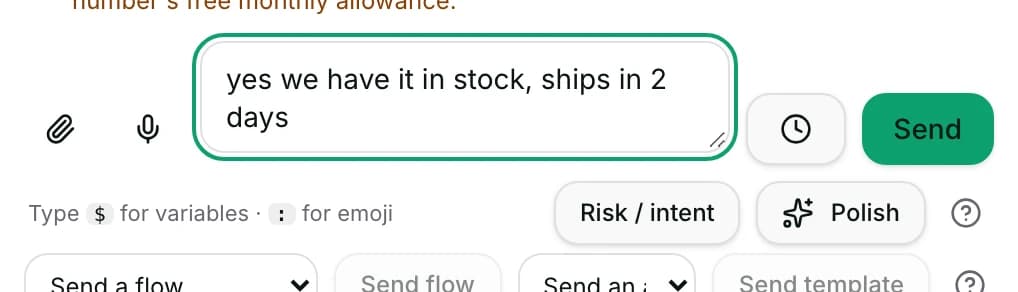
- With your own text typed, click Polish (in the app, AI polish) instead to have it rewritten.
Watch out
- None of these sends. A draft waits in your box until you press Send.
- Summarize does write: it adds an internal note to the conversation, readable by your team.
Details
Getting here
Inbox → open a conversation → Risk / intent, Draft with AI and Polish sit under the composer; Summarize is in the header's More actions menu. In the app: tap + beside the reply bar, where one tile changes with what you are doing.
Before you start
- An owner, admin or agent can use these. A viewer is refused: You don’t have permission to use AI assistance here.
- Your workspace needs AI messages left in its allowance; each press that reaches the AI uses one. Settings → Billing shows how many are left this month. What you get depends on your plan — see pricing.
- Draft with AI needs at least one customer message to answer.
How it works
- Draft with AI reads the last twenty messages of the conversation and writes a suggested reply straight into the box, for you to read and edit.
- When the AI agent holds a reply back for you, it waits in a card marked AI draft — not sent. Review before sending., with ({percent}% confident).
- Use this draft puts that held-back draft in the box. When you have already typed something, the same button reads Replace my text.
- Polish rewrites what you have typed, keeping your language. On the web you get Accept or Discard, and nothing is written until you accept; in the app the rewrite replaces your text at once.
- Risk / intent reads the conversation and gives you a short briefing under Intent & risk (internal — not sent). It goes nowhere near the customer.
- Summarize is the one that writes something: it reads up to the last 200 messages and adds a summary to the conversation as an internal note, marked Internal note · AI summary.
- Draft with AI, Risk / intent and Summarize skip internal notes when they read the conversation. Polish reads only the text you typed.
- Discard removes that card. The suggestion is marked dismissed on the server, so it does not come back when the conversation refreshes.
- Dismiss hides the briefing. It was never saved, so nothing else is removed.
- On the web, discarding a polish leaves your own text exactly as you typed it — the rewrite was never written into the box.
- These four are separate from the AI agent that answers by itself. Pressing them does not change who owns the conversation.
When it fails
- The AI draft failed. Please try again. — the draft did not come back. Press it again, or write the reply yourself.
- There’s no customer message to reply to yet. — nothing has come in on this conversation for the AI to answer.
- The AI didn’t have enough to draft a confident reply — the model returned nothing usable. Add to the knowledge base, or write the reply yourself.
- The AI polish failed. Please try again. — the rewrite did not come back.
- On the web, The rewrite was cut off means the rewrite ran past its length. The notice says it cannot be inserted and asks you to polish a shorter draft. Accept is withheld on purpose, so a half-sentence cannot be sent.
- In the app the cut-off rewrite is put in the box anyway, with The rewrite hit its length limit — check the end before sending. Read the end before you press Send.
- The risk/intent brief failed. Please try again. — the briefing did not come back.
- Summary failed — the note was not written. Nothing was added to the conversation.
- Could not dismiss the draft. — the card is gone from your screen and may still be on your teammates'.
- When the workspace has no AI on its plan, all four are refused with AI is not included on this plan, which points at Settings → Billing.
- When the month's AI messages are used up, all four are refused with a message naming the allowance and asking you to upgrade or wait for next month.
- Could not verify AI allowance. Please try again. means the check itself failed. Nothing was read and nothing was written.
Limits
- None of these sends anything to the customer. Only your press on Send does that.
- The briefing is never inserted into the box, on purpose, so it cannot be sent by accident.
- These tools do not pause, resume or change the AI agent's own handling of the conversation. That is the owner control at the top.
- A draft is a suggestion, not an answer that has been checked. The confidence figure describes the model's own certainty, nothing more.
- Draft with AI reads the last twenty messages only; Summarize reads the last 200. Older parts of a long conversation are not in what they saw.
- A summary is an internal note. Everyone who can open this conversation can read it; the customer never can.
- Each press that reaches the AI uses one AI message from the workspace's allowance, whether or not you use the result.
Best practices
- Use Draft with AI for the answer you have typed a hundred times, and Polish when the words matter more than the facts.
- Always read a draft against the conversation before sending. The model can be confident and wrong at once.
- Press Risk / intent before a difficult reply, not after. It is a briefing for you, not a record for the customer.
- Summarize a long conversation before you hand it over, so the next person reads one note instead of forty messages.
- When a draft is repeatedly wrong, the fix is the knowledge base behind the AI agent, not a better press of the button.
Use cases
- A delivery question arrives at closing time: Draft with AI, read it, adjust the date, send.
- You wrote a blunt one-liner to an unhappy customer: Polish it before sending.
- A conversation has run for two days and is being handed over: Summarize, then assign.
- A customer's tone has changed and you want to know what is at stake before answering: Risk / intent.
- English is not your first language and the reply must be exact: type it, then Polish.
FAQ and troubleshooting
- Will the draft send by itself?
- No. Draft with AI and Polish write into your composer, the briefing is shown only to you, and Summarize adds an internal note. A message leaves only when you press Send.
- Does the customer see the briefing or the summary?
- No. The briefing is shown to you and stored nowhere; the summary is an internal note on the conversation, visible to your team only.
- What happens to my own text if I polish and then discard?
- On the web it stays as you typed it; the rewrite is only shown until you accept it. The app has no discard: the rewrite replaces your text straight away.
- Does using these tools take the conversation away from the AI agent?
- No. Who answers the conversation is the owner control at the top, and these buttons do not touch it.
- Can I get a draft on my phone?
- Yes. Tap + beside the reply bar. With the box empty the tile reads AI draft; once you have typed, the same tile reads AI polish.
- Why does a press cost us anything when I do not use the result?
- The AI has to read the conversation and write the answer before you can judge it, so the work is done either way.
Reading this with an AI assistant? Plain Markdown version.