Act on many conversations at once
Tick several conversations and close, reopen, tag, assign or mark them unread in one go.
Quick start
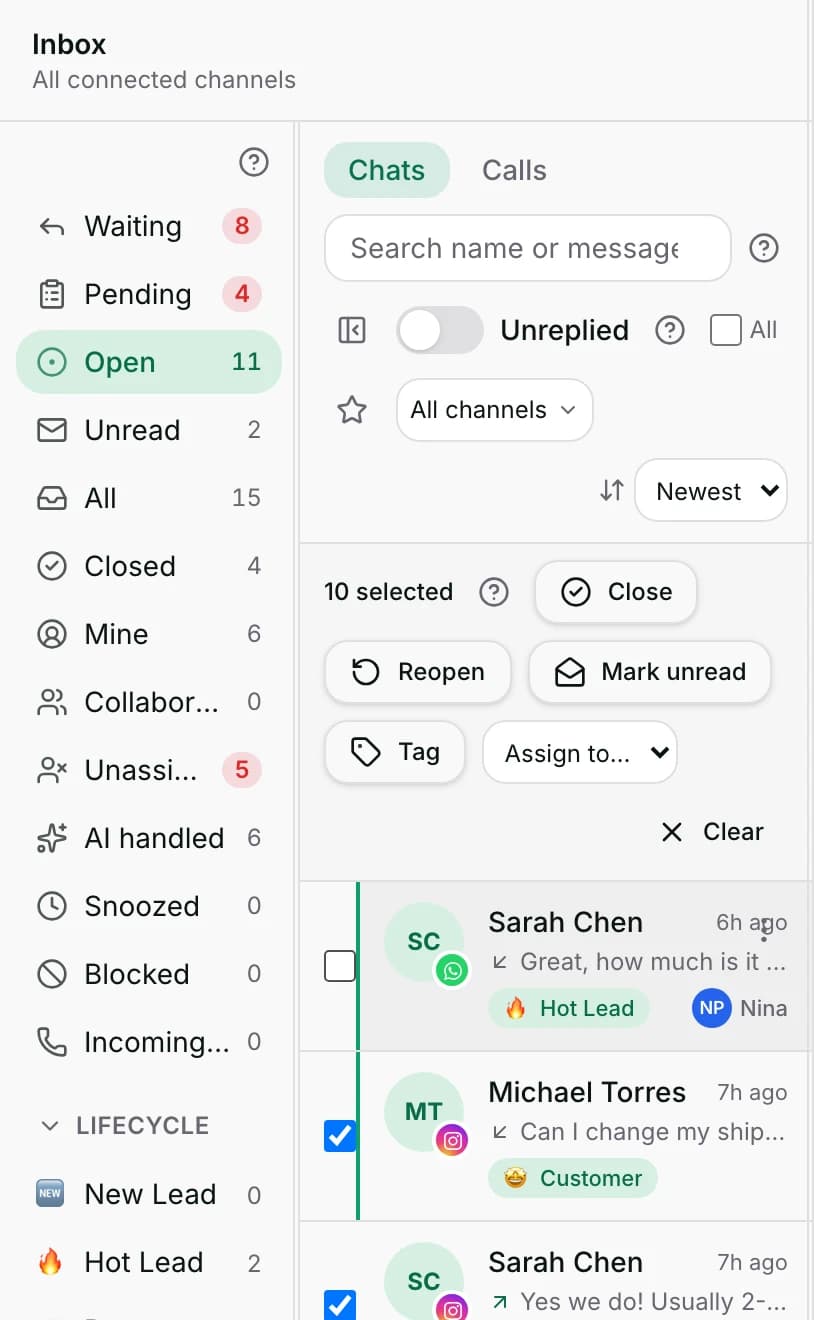
- Open Inbox and tick the box on each row you want. In the app, use Select conversations.
- The bar above the list appears and says {count} selected.
- Click Close, Reopen or Mark unread. Closing can message each customer.
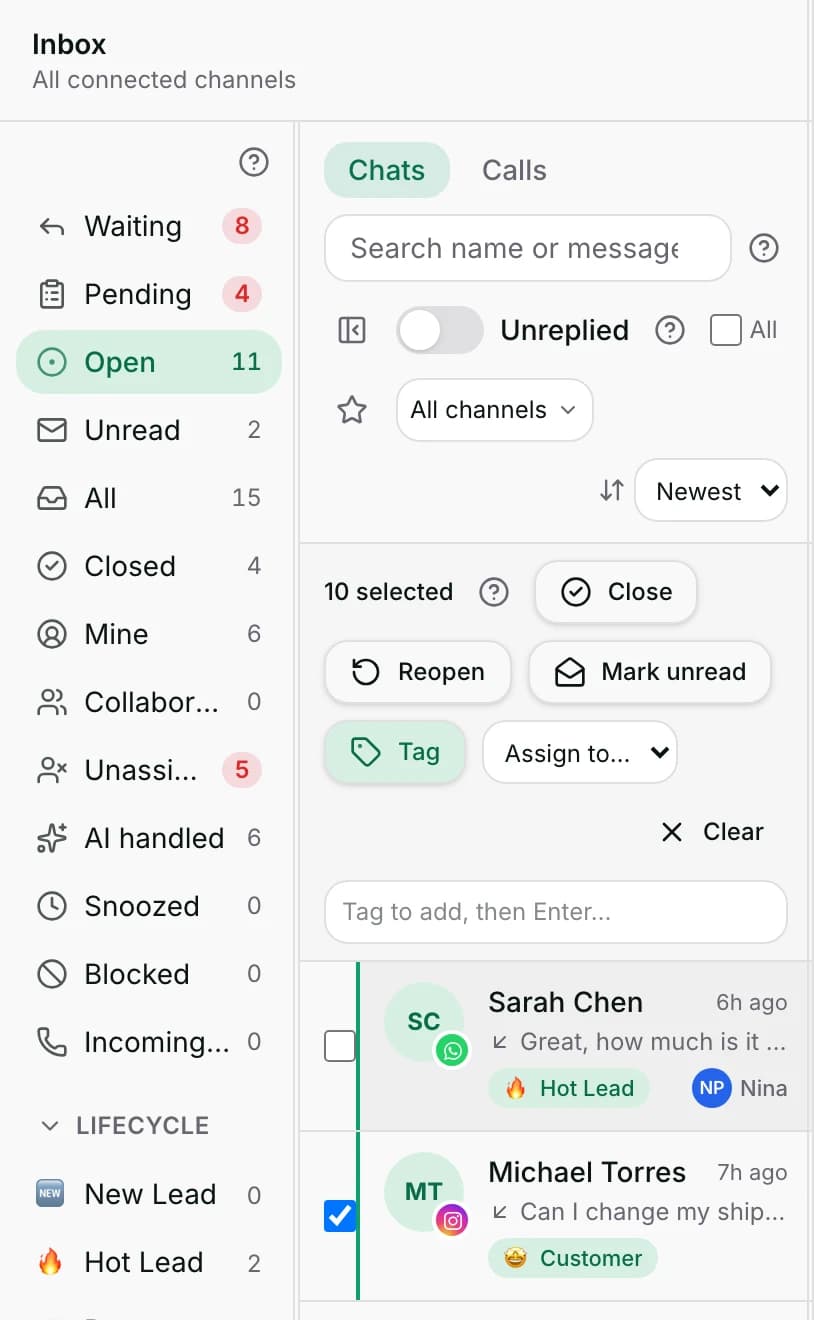
- To tag them, click Tag, type the tag and press Enter. It tags the conversation, not the contact.
- Click Clear when you are finished. Owners, admins and agents can use every button.
Watch out
- Close in bulk can reach customers: it sends the satisfaction survey when that is on, and starts any conversation-closed workflow.
- A part-finished run is not undone. The conversations that changed stay changed.
Details
Getting here
Inbox → tick a row, or use the All checkbox above the list. The bar appears between the filters and the list. In the app: the inbox header's Select conversations, then the bar at the bottom.
Before you start
- An owner, admin or agent can use every button. A viewer can use only Mark unread, which is personal; every other action is refused for them.
- At most 100 conversations at a time.
- The tag has to be one you are happy to create: typing a new one adds it.
Fields
- Close
- Closes each selected conversation, exactly as closing one does.
- Reopen
- Puts each selected closed conversation back in Open.
- Mark unread
- Marks each one unread for you only.
- Tag
- Adds one tag to each selected conversation.
- Limits: A conversation tag, not a contact tag. It only ever adds.
- Assign to…
- Assigns every one to the teammate you pick, or Unassign for none.
- Clear
- Drops the selection without doing anything.
How it works
- Each conversation is handled one at a time, with its own permission check and its own line in the conversation's history. It is not one sweeping change.
- Because of that, a run can land partly: the bar then says {applied} of {count} updated — {error}, naming the first thing that went wrong.
- When everything lands the bar says {applied} updated; when nothing does, Nothing was updated.
- Close does everything a single close does: the close time, the conversation's own line, your read marker, the conversation-closed workflow trigger and the satisfaction survey when it is switched on.
- Tag adds a tag to the conversation, not to the contact. A contact tag is edited on the contact.
- Tags are added, never replaced, and a tag already there is not added twice.
- Assign to… checks each target is still a member of the workspace before assigning.
- Mark unread is personal: your list changes, your teammates' lists do not.
- The All checkbox ticks the rows on screen. Because a view renders only the first few hundred rows, and the bar allows 100, ticking All on a busy view usually goes over the limit at once.
- Over the limit, every button is switched off and the bar says {limit} at a time is the maximum — deselect {remaining}.
- The app's selection bar works the same way and shares the same limit and the same wording.
When it fails
- {limit} at a time is the maximum — deselect {remaining}. — nothing runs until the selection is small enough.
- Nothing was updated. — every single one failed. The message beside it names the first reason.
- {applied} of {count} updated — {error} — some landed and some did not. The ones that landed stay done.
- You don’t have permission to change this conversation. — you are a viewer, or not a member of this workspace.
- That teammate isn’t a member of this workspace. — the person you picked has left.
- This contact already has an open conversation on this channel — one of the reopens was refused because a newer conversation is already open with that person.
- Applying… while it runs. The bar stays until the run is finished, however long the list is.
Limits
- The bar writes no message itself. Close can still reach customers: it sends the satisfaction survey when that is switched on under Settings → Conversations, and starts any workflow triggered by a closed conversation.
- It can only close, reopen, mark unread, tag and assign. It cannot snooze, pin, mute or route to a team.
- It acts on the rows you ticked. All ticks what is on screen, not everything the view matches — the view itself renders only the first few hundred rows.
- A partly-finished run is not undone. The conversations that were changed stay changed.
- Tag adds one tag per run and never removes one. Removing a tag is done on the conversation.
- The tag it adds is a conversation tag. It does not change the contact, and it does not move anyone through a lifecycle stage.
- Mark unread is per person, so it cannot be used to put work back into a teammate's queue.
Best practices
- Narrow the view first, then select. A tidy view is safer than a long selection.
- Close in batches of a few dozen rather than the whole screen — a smaller run is easier to read when it partly fails.
- Read the result line. {applied} of {count} updated means some rows still need you.
- Tag before you close, so the closed conversations can still be found by that tag afterwards.
- Assign rather than close when the work is not finished. Closing takes it out of everybody's working view.
Use cases
- A morning of duplicate greetings from one campaign: select, Tag them, then Close.
- A teammate has left: select their open chats and Assign to… somebody else.
- You closed a batch by mistake: select them under Closed and Reopen.
- A set of chats you skimmed on a phone: select and Mark unread, so they come back on the desk.
- Fifty chats from one broken advert: tag them so the report can count them.
FAQ and troubleshooting
- How many conversations can I act on at once?
- 100. Above that every button is switched off and the bar says how many to deselect.
- Does the All checkbox select everything in the view?
- No — only the rows on screen. A view renders only the first few hundred rows, and the bar allows 100, so All on a busy view usually goes over the limit at once.
- The bar says some were updated and some were not. What happened?
- Each conversation runs on its own, so one can be refused while the rest go through. The ones that were changed stay changed; the message names the first reason.
- Does the tag go on the customer or on the chat?
- On the chat. Tagging a contact is done from the contact, and it is a different list of tags.
- Can I snooze or pin several conversations at once?
- No. Those are on one conversation at a time.
- Will the customers know I closed their chats?
- Only if something messages them: the satisfaction survey when your workspace has it switched on, or a workflow that starts when a conversation is closed. Closing in bulk does both, exactly as closing one does.
Reading this with an AI assistant? Plain Markdown version.