Close, reopen, snooze, pin and mute a conversation
Clear a chat out of your working views without losing it, park it until later, or keep it on top of the list.
Quick start
- Open Inbox and click a conversation. Owners, admins and agents can close and snooze.
- Click Close in the header when it is dealt with. Closing can message the customer.
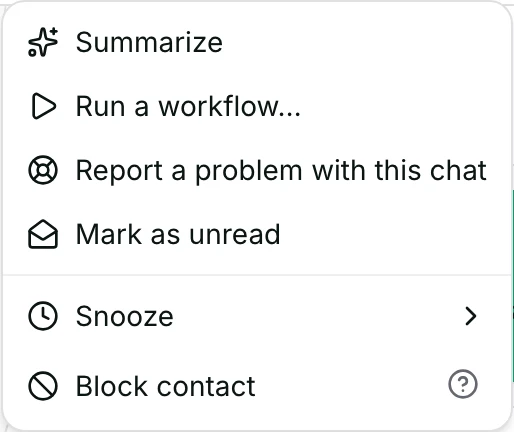
- To park it instead, open More actions in the header → Snooze → 1 hour.
- Find it again under Closed or Snoozed in the views rail.
- Click Reopen in the header to put a closed chat back in Open.
Watch out
- A closed conversation never reopens by itself. The customer's next message opens a new one instead.
- Closing can reach the customer: it sends the satisfaction survey when that is on, and starts any conversation-closed workflow.
Details
Getting here
Inbox → open a conversation → Close or Reopen in the header, and Snooze under More actions. A list row's Conversation actions menu has Close conversation, Snooze conversation, Pin conversation, Mute notifications and Mark as unread. In the app: long press a list row for the same sheet, or use the conversation header.
Before you start
- An owner, admin or agent can close, reopen and snooze. A viewer cannot.
- Pinning and muting are personal and need no permission at all — a viewer can use both.
- Nothing has to be set up first. These actions work on any conversation.
Fields
- Close / Reopen
- Moves the conversation out of Open, or back into it.
- Limits: Reopening is refused when the contact already has a newer open conversation on this channel.
- Snooze
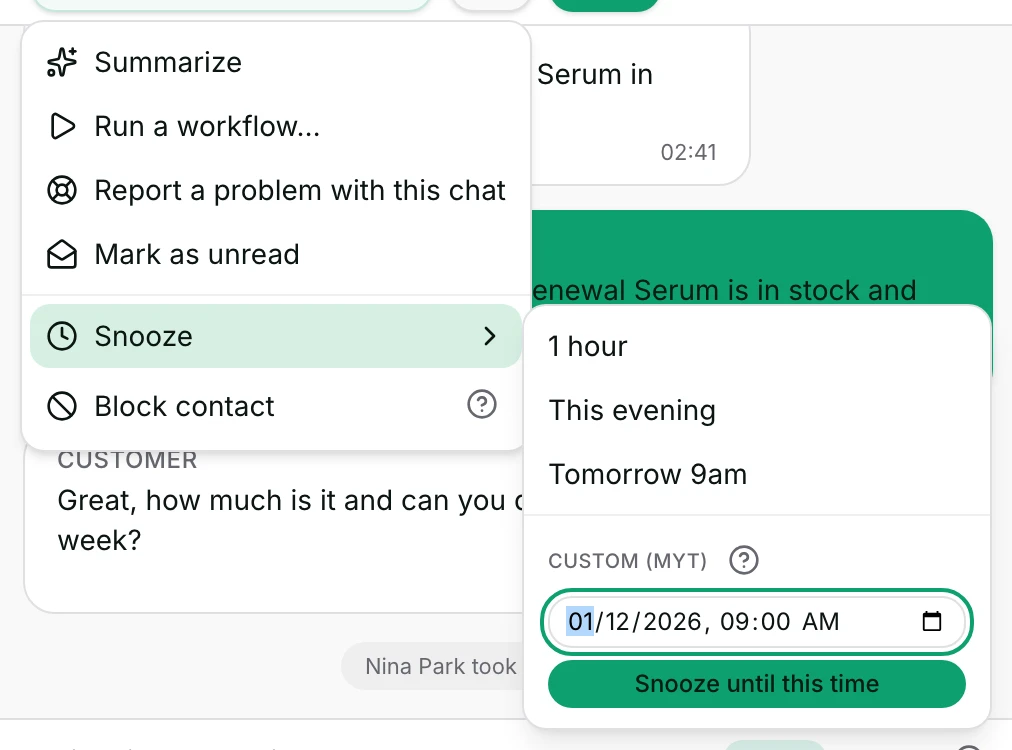
- Parks the conversation until a time you pick: 1 hour, This evening, Tomorrow 9am, or Custom (MYT).
- Limits: At least a minute away, and at most a year out. The customer writing ends it early.
- Pin conversation
- Floats the chat to the top of every list, for you only.
- Default: off
- Mute notifications
- Silences this conversation's notifications for you: 8 hours, 1 week or Always.
- Default: off
- Limits: Yours alone. It does not hide the chat and does not stop the AI or a workflow.
- Mark as unread
- Puts the chat back in Unread for you.
- Limits: Personal. Your teammates' lists do not change.
How it works
- Closing writes the close time onto the conversation, adds {name} closed the conversation to it, and the row shows Conversation closed.
- A closed chat leaves Open at once and stays reachable under Closed and All.
- Closing also marks the chat read for you, so it cannot hold your unread badge up from a view you do not look at.
- Closing starts any workflow whose trigger is the conversation being closed, and can send the satisfaction survey when that is switched on. The survey is switched on under Settings → Conversations.
- Reopen puts the chat back in Open and clears its close time. {name} reopened the conversation is added to it.
- Snoozing sets a time and leaves the status alone: a snoozed chat is still open, it is simply resting.
- While it rests, it is left out of Open, Waiting, Mine and the other working views. It shows under Snoozed, under Pending when a task on it is due, and under Unread if you marked it unread.
- The snooze menu offers 1 hour, This evening and Tomorrow 9am, and Custom (MYT) with Snooze until this time.
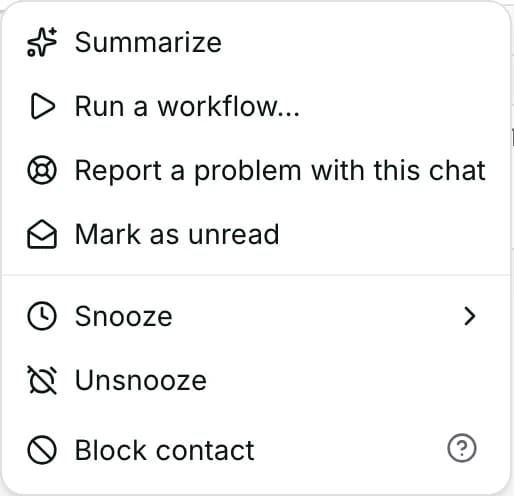
- Unsnooze appears in the same menu once a chat is resting, and brings it straight back.
- The app offers the same three presets and a different custom picker: Day, Time (MYT), with Today, Tomorrow, One hour earlier and One hour later.
- Pin conversation floats the chat to the top of every list. It is yours alone, and the most recently pinned sits highest.
- Mute notifications offers 8 hours, 1 week or Always. It silences this chat for you only, and the row shows a muted mark.
- Mark as unread puts the chat back in Unread for you. Your teammates' lists do not change.
- Marking unread keeps the record of when you last looked; it is the mark that forces the badge back.
- The phone's sheet carries the same actions plus Add to list, and a swipe on a row marks it unread without opening the sheet.
When it fails
- Could not close this conversation. and Could not reopen this conversation. — the status did not change.
- This contact already has an open conversation on this channel — reopening is refused because a newer conversation with the same person is already open. Reply there, or close it first.
- You don’t have permission to change this conversation. — you are a viewer, or not a member of this workspace.
- Could not snooze this conversation. and Could not unsnooze this conversation. — the timer is unchanged.
- Pick a time in the future. — the custom snooze time has already passed.
- Snooze time must be in the future. and Snooze can’t be more than a year out. are the server's own limits on a custom time.
- Could not mark as unread. — the mark was not set, and the chat stays as it was.
- That action could not be completed. is the row menu's general failure; nothing changed.
Limits
- Closing deletes nothing. Every message stays, and the chat is still found under Closed, under All and by search.
- Closing does not block the customer and does not stop a workflow that is running on the conversation.
- A closed conversation never reopens by itself. When the customer writes again, a new conversation is started instead — and it shows the earlier messages above the new ones, so the history still reads as one conversation.
- Snoozing does not tell the customer anything, and it does not stop them writing. When the customer writes, the snooze ends and the chat comes back at once.
- A pin and a mute are yours alone. Nobody else's list changes, and nobody can see that you pinned or muted a chat.
- Muting silences notifications. It does not hide the conversation, and it does not stop the AI or a workflow from answering.
- Mark as unread is personal in the same way. It does not put the chat back in anybody else's queue.
- Of these, only close, reopen and mark unread can be done to many conversations at once.
Best practices
- Close when the customer's question is answered, not when you are tired of the row. Closed is the record of finished work.
- Snooze rather than leaving a chat open to remind you. Snoozed keeps it out of everybody's queue until it is really due.
- Use Mark as unread for "I read it and I cannot deal with it now" — it keeps the chat in the queue without hiding it.
- Pin the two or three chats that run all day, and unpin them when they end. A long pinned list stops being a signal.
- Mute a chat a colleague is already answering instead of closing it. Closing takes it out of their working view too.
Use cases
- Sarah Chen's order is delivered and confirmed: close the chat.
- Michael Torres will pay tomorrow morning: snooze until Tomorrow 9am.
- A group of customers are all waiting on one supplier: pin the chats until the stock arrives.
- You read a long complaint on your phone and want it back on the desk: mark it unread.
- A teammate is handling a noisy chat you were also in: mute it for 8 hours.
FAQ and troubleshooting
- Does a closed conversation reopen when the customer writes again?
- No. A new conversation is started for their new message, and the old one stays closed. The conversation still shows the earlier messages above the new ones, so nothing looks lost.
- I clicked Reopen and it refused.
- That happens when the customer already has a newer open conversation on the same channel. Only one can be open at a time, so reply in the newer one, or close it first.
- Does closing delete the conversation?
- No. It moves it out of Open. Every message is kept, and the chat is still under Closed, under All, and findable by search.
- What is the difference between snoozing and closing?
- Closing says the work is finished. Snoozing says it is not finished but not due yet — the chat comes back on its own at the time you set, or sooner if the customer writes.
- Will my teammates see that I pinned or muted a chat?
- No. Both are yours alone. Their lists and their notifications are unchanged.
- Does muting stop the AI answering?
- No. Muting only silences your own notifications. Whether the AI answers is the owner control at the top of the conversation.
Reading this with an AI assistant? Plain Markdown version.