What changed since 28 October 2026
Find the new deal export, inbox rota, tasks and booking checks, with the permissions and limits that matter.
Quick start
- Check the workspace name in the header before opening Settings or Starred messages.
- For a deal download, open Pipelines as an owner or admin.
- For a follow-up, open a conversation and choose Add task.
- Use the guides below for closing, consent, broadcasts and workflow details.
Details
Getting here
Use the workspace picker first, then open the page named below. This guide covers changes merged from 28 October through 2 November 2026.
Before you start
- Your role and channel access still apply. A new control does not grant access to another workspace.
- The deal export and backfill tool are on the web. Adding a task and reading send history also have app entry points.
Fields
- Close with a category
- Close a conversation and choose one of six default reasons, or your workspace’s own categories. Owners and admins can change the list in Settings → Conversations → Closing notes.
- Export deals
- In Pipelines, owners and admins can download Export deals (CSV) for the selected pipeline, or export all active pipelines. The file includes open, won, lost and abandoned deals beyond the board’s display limits.
- Work with the pipeline board
- Search and filters cover the deals loaded for the pipeline, beyond the first page. Read the notice if a loading limit is reached. Expected close dates save after editing; abandoned deals leave Open and can be reopened.
- Use the selected workspace
- The header’s workspace determines the channels in Settings, the WhatsApp numbers offered for templates and catalogs, and Starred messages. Switch the workspace first if a channel or saved message is missing.
- Set an inbox rota
- An owner or admin can configure an inbox’s assignment rota under Settings → Channels, including switching it off and choosing whether to sweep waiting backlog. A workflow’s team assignment has its own team rotation.
- Add a task yourself
- On the web, open Tasks to add a title, contact, due date and assignee. From a conversation, use Add task; the app offers a task sheet there too. An overdue task can notify its assignee, or owners and admins when unassigned.
- Preview a contact backfill again
- Under Settings → Backfill, an unrun preview expires after 24 hours. The page says it expired without running. Make a new preview, review it, then run it with the tab open. Expiry never starts changes for you.
- Review broadcast sends
- The broadcast review shows contacts held back and refuses an empty audience. You can upload a header image before publishing. Owners and admins can inspect API template sends in Broadcasts → Send history, or Settings → Send history in the app.
- Check booking confirmations
- Public booking pages may ask the customer to confirm their number by sending a code on WhatsApp before confirmation messages and booking workflows proceed. A workspace paused by a platform admin refuses public bookings and rescheduling; cancellation remains available.
- Read message outcomes
- An expired attachment or a channel refusal can explain why a reply cannot be sent or opened. A failed bubble in the app shows the full refusal. TikTok Shop says when it does not report delivery; a sent message is not proof it was read.
- Use forms and website chat
- Form card checkout is unavailable. A legacy redirect that is not an HTTP or HTTPS address is shown empty in the builder, with a note. Website chat starts a conversation after the visitor’s first message or pre-chat form, and keeps history after a reload.
- Follow consent and human ownership
- A manually sent or scheduled marketing template needs consent. A typed opt-out can end a waiting workflow; see the question guide for channel exceptions. Automatic workflow sends stop after human takeover. Read the linked guides before changing a live flow.
- Check the order drawer
- The conversation’s order drawer can prefill details it found for you to check. Review the products, quantities and address before creating an order; a prefill is not a confirmed purchase.
- Preview a booking template
- The booking template picker lists each name once, then offers its available languages. Its body preview can contain example values, not the customer’s final confirmation.
- Search contacts through the API
- API clients can use POST /api/v1/contacts/search with the phone in the request body. It needs contacts:read access. The older phone lookup in a URL is deprecated.
How it works
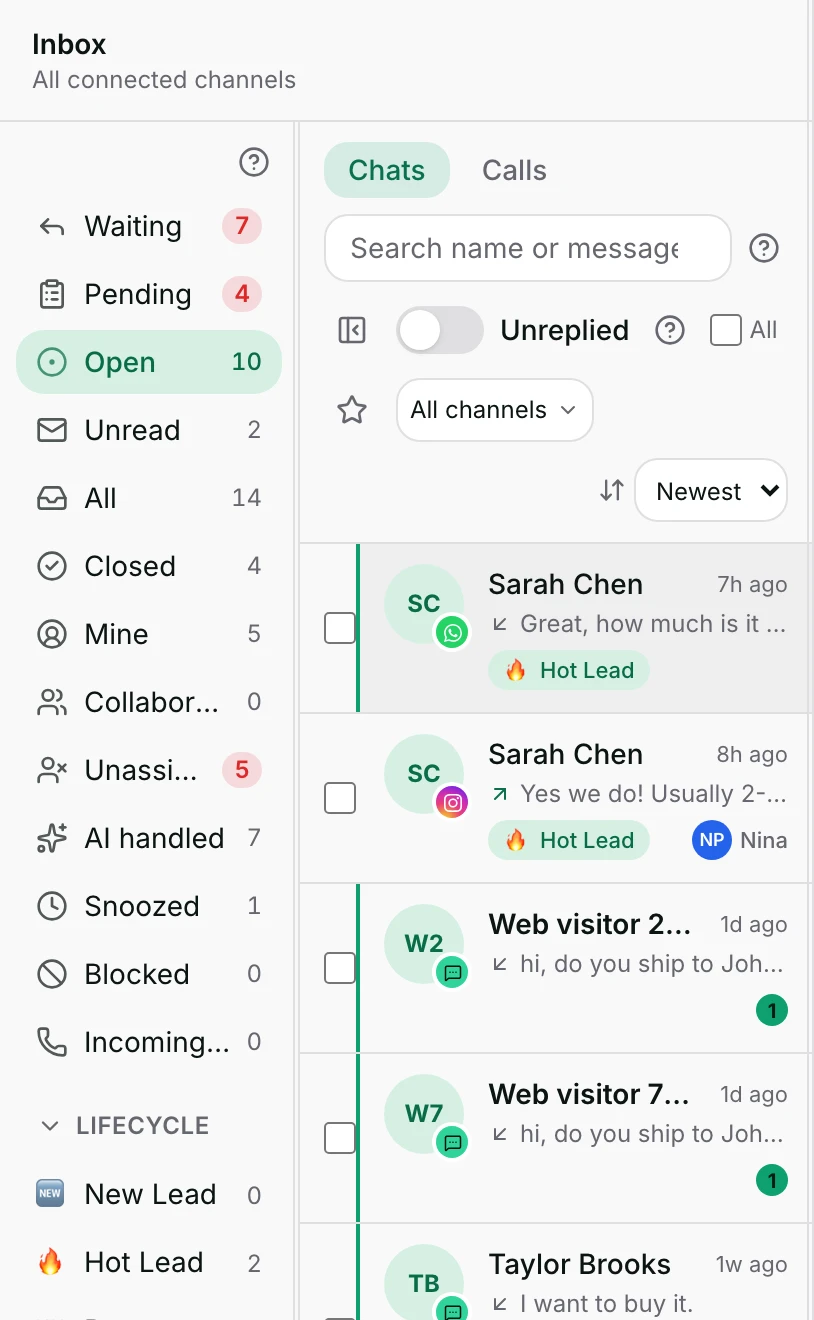
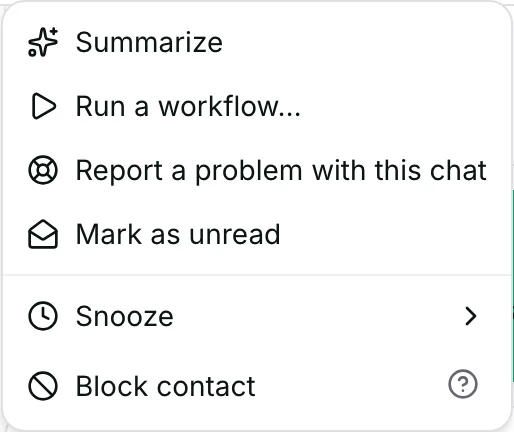
- The two pictures show existing Inbox navigation: views and the conversation actions menu. Use the page paths above for the other features.
- Closing categories are optional. Read Close and reopen for the six defaults and survey behaviour.
- For team rotation, read Assign to a team. For inbox ownership, read Assign and collaborate.
When it fails
- Only owners and admins can export deals. If a download fails, retry it; do not treat a partial file as complete.
- A missing channel or Starred message can belong to another workspace. Check the workspace picker and your access.
- An expired backfill preview cannot run. Create a new preview and review its changes before confirming.
Limits
- The deal CSV omits contact names, phone numbers, emails and deal names. It identifies the contact by id.
- Exporting all pipelines includes active pipelines only. Board search remains bounded by its loading limits; the CSV export is a separate action.
- A task reminder is not a customer message. Reminders cover recently overdue tasks, not every old task.
- A public booking pause is an admin suspension, not an unpaid-plan state. It does not describe staff-created bookings.
- This is a guide to merged changes, not a guarantee that every live workspace has enabled each feature.
Reading this with an AI assistant? Plain Markdown version.