The broadcasts list
Every broadcast you have drafted, scheduled or sent, as a table or a month calendar.
Quick start
- As an owner or admin, click Broadcasts in the left sidebar. The app has no Broadcasts tab.
- Pick a status in the left rail, or stay on All.
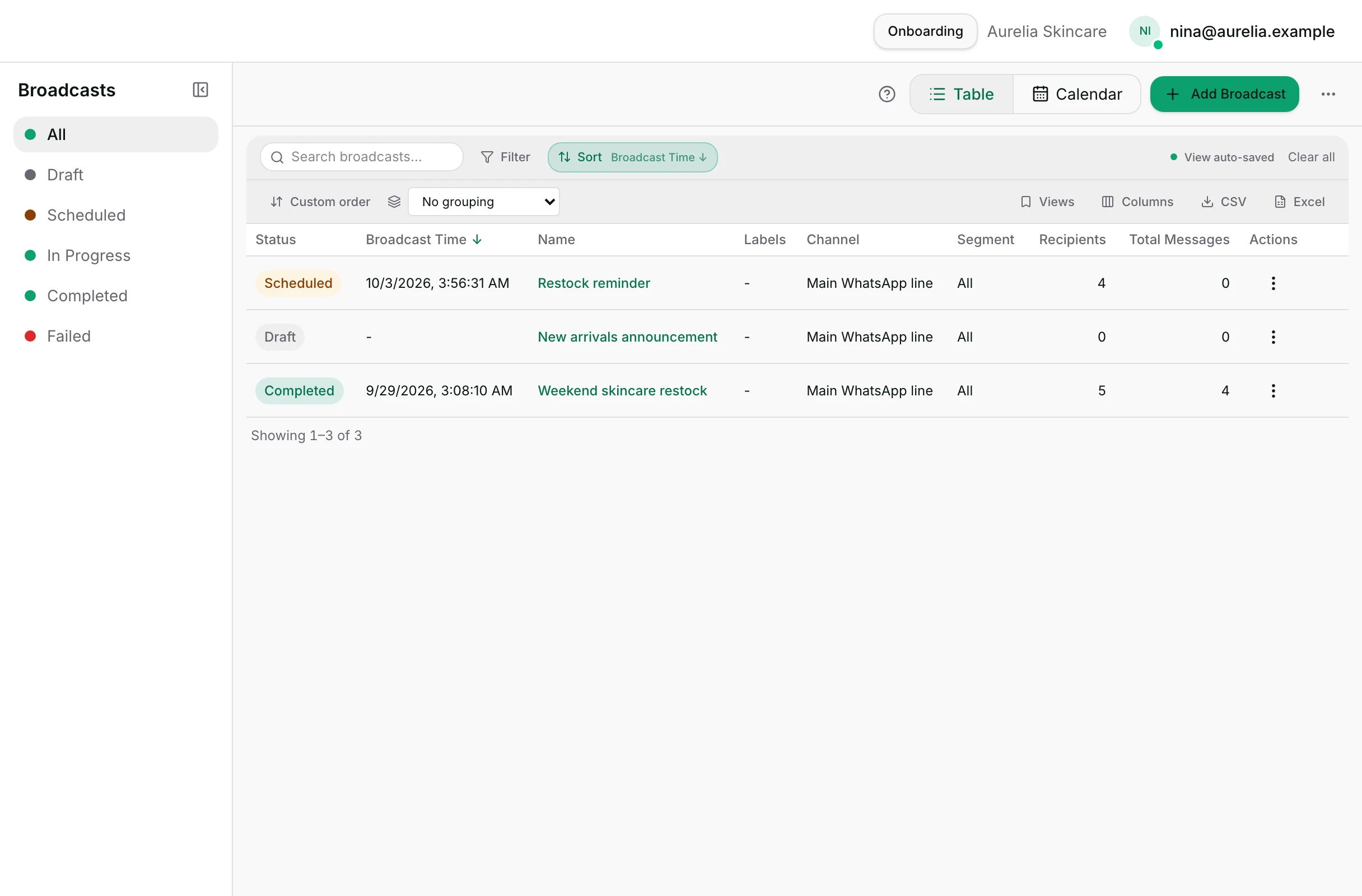
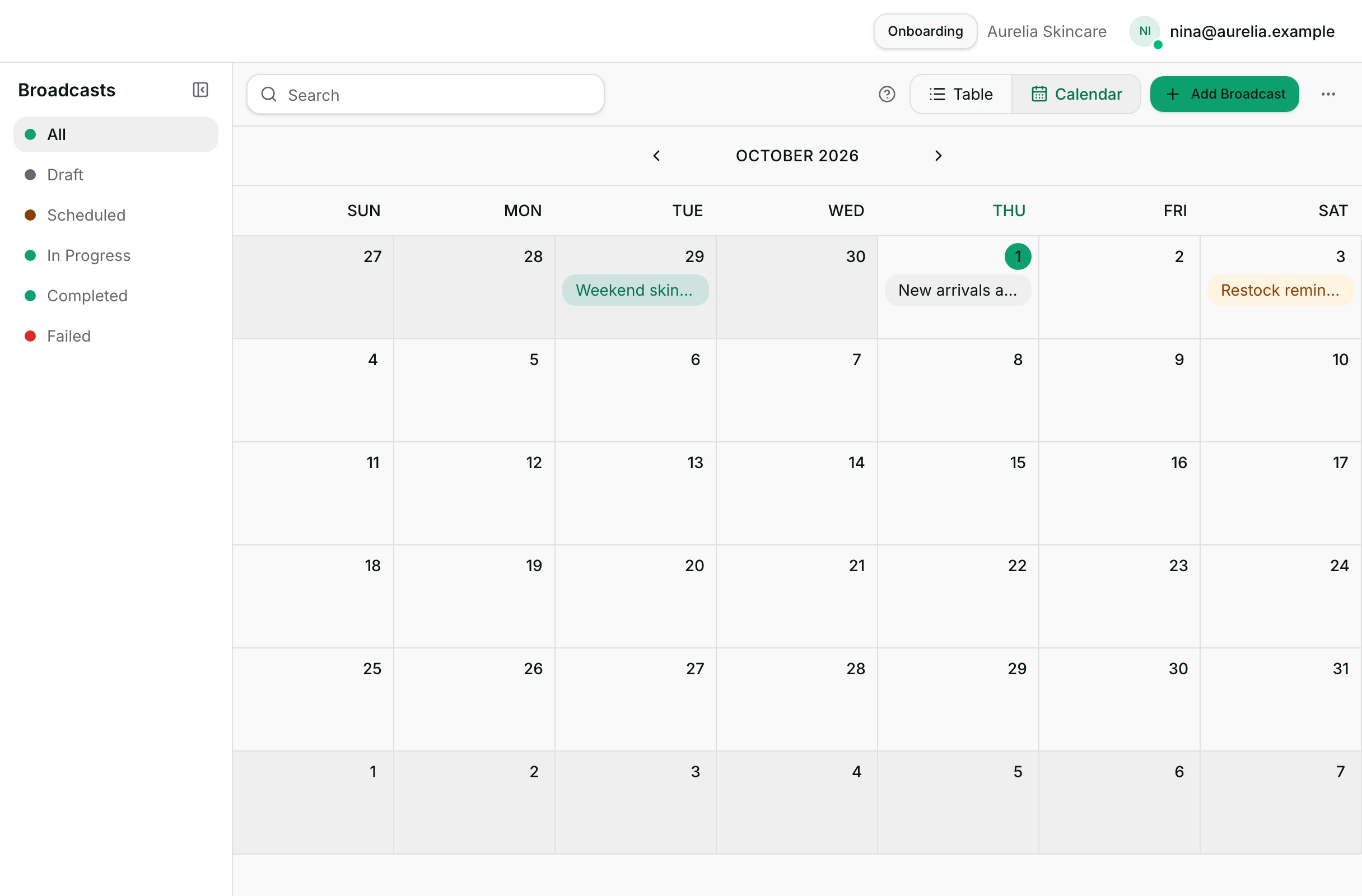
- Switch between Table and Calendar with the toggle above the list.
- Click Add Broadcast, name it, and the setup opens. Nothing is sent until you publish.
- Click any row for its summary, then Continue Editing or View Report.
Watch out
- Cancelling clears the scheduled time. Before you publish again, choose the timing again, or it goes out straight away.
- Cancel works only while a broadcast is scheduled. A send already in progress cannot be stopped.
Details
Getting here
Broadcasts in the left sidebar, with Add Broadcast and ⋯ at the top right. The app has five tabs and Broadcasts is not one of them, so use a computer.
Before you start
- Only an owner or an admin sees Broadcasts at all. An agent or a viewer does not get the sidebar entry.
- Sending a broadcast depends on your plan, and scheduling one for later is a separate question from sending one now; see pricing.
- Any paid plan may send a broadcast now. Scheduling one for later needs a higher plan, and nothing on a free plan sends.
- You need a WhatsApp channel with a working connection, and at least one approved template on it.
Fields
- Status
- Draft, Scheduled, In Progress, Completed or Failed.
- Broadcast Time
- The scheduled time if there is one, otherwise when it started, otherwise when it was created.
- Name
- Your own name for it, visible to your team and never to a customer.
- Labels
- Your own labels, for grouping and searching later.
- Channel
- The number it sends from, or a dash when each contact gets their own.
- Segment
- The segment it targets, or All.
- Recipients
- How many people it was built for.
- Total Messages
- How many messages were actually attempted, so people with no usable number are not counted.
How it works
- The left rail is the same six buckets as the status chips: All, Draft, Scheduled, In Progress, Completed and Failed.
- A broadcast you cancel goes back to Draft and can be edited and published again. Cancelling also clears its scheduled time, so choose Schedule for again before you publish, or it goes out straight away.
- Broadcasts cancelled by an older version of the product keep a (Canceled) marker on their chip.
- The table is the workspace's standard list: search, per-heading filters, sort, grouping, a field chooser, saved views, and its own export.
- Hiding a row only takes it out of your list. A hidden scheduled broadcast still sends.
- Clicking a row opens a drawer with Delivery Time, Segment, Channel, Recipients, Total Messages, Broadcast Pace, Sent By, Labels and the message itself.
- A draft or scheduled broadcast's drawer ends with Continue Editing; anything past that ends with View Report.
- The row menu offers Open Builder for a draft or a scheduled one, Edit Name/Label, View, Clone, Cancel for a scheduled one, and Delete for a draft.
- Clone copies the setup into a new draft, so a campaign you run monthly is one click rather than a rebuild.
- Calendar lays the same broadcasts on a month grid by their broadcast time, with arrows for the previous and next month. A busy day collapses to +N more.
- Add Broadcast asks only for a Broadcast Name and optional Labels, then opens the setup. The name is for your team: Name your broadcast (only visible internally).
- The ⋯ menu has Export to CSV, which exports the status and search you are looking at, and Customize Columns.
When it fails
- The workspace cannot be read: Could not load broadcasts and Please try again shortly.
- No broadcasts at all: No broadcasts yet — use Add Broadcast to create your first one.
- A filter that matches nothing: No broadcasts match this filter.
- A status with more broadcasts than one load holds — 2,000 — says so: “This status has more broadcasts than the list loads at once; only the newest are shown. Narrow it with the search box in Calendar view.”
- WhatsApp is slowing a number down: WhatsApp is limiting sends on {channel}, since {since}, retrying automatically around {until}. Nothing is broken and nothing is lost.
- Cancel on anything that is not scheduled: Only scheduled broadcasts can be canceled.
Limits
- This page sends nothing by itself. A broadcast goes out because it was published.
- Cancel works on a scheduled broadcast only. Once sending has begun it cannot be called back.
- Delete works on a draft only.
- A published broadcast's audience is fixed. While it is still scheduled, cancel it back to a draft, change it, choose the timing again, and publish. Edits saved without cancelling do not all reach the send.
- Hiding a row is your own view only. It does not stop, pause or delay anything.
- There is no broadcast screen on the app, so a send cannot be started or stopped from a phone.
Best practices
- Name a broadcast for the campaign and the date. Labels then group a whole season together.
- Use Clone for anything you repeat. It keeps the segment and the template setup you already checked.
- Watch In Progress while a large send runs. That is where a slowed-down number shows up.
- Check the calendar before scheduling. Two promotions on the same date reach the same people twice.
Use cases
- A festival promotion goes out next Friday: create it now, schedule it, and see it on the calendar.
- Last month's campaign worked: clone it, change the segment, and publish.
- A send looks stuck: open it from In Progress and read the banner before asking anybody.
- Your manager wants the quarter's campaigns: filter the table and use Export to CSV.
FAQ and troubleshooting
- Why can my agent not see Broadcasts?
- Broadcasts are for owners and admins. An agent does not get the sidebar entry at all.
- Can I get a cancelled broadcast back?
- Yes. Cancelling a scheduled broadcast returns it to Draft and clears its time. Edit it, choose the timing again, and publish.
- Can I stop one that is already sending?
- No. Cancel is offered for a scheduled broadcast only. Once it is in progress, the messages already queued go out.
- What is the difference between Recipients and Total Messages?
- Recipients is how many people it was built for. Total Messages counts the messages actually attempted, so people with no usable number are not in it.
- I hid a broadcast. Did I stop it?
- No. Hiding takes the row out of your list and changes nothing about the send.
Reading this with an AI assistant? Plain Markdown version.