Write the broadcast message
Each number sends one approved template, with its blanks filled from the contact or from a fallback you choose.
Quick start
- In the broadcast, scroll to Message Content. A channel must be chosen first.
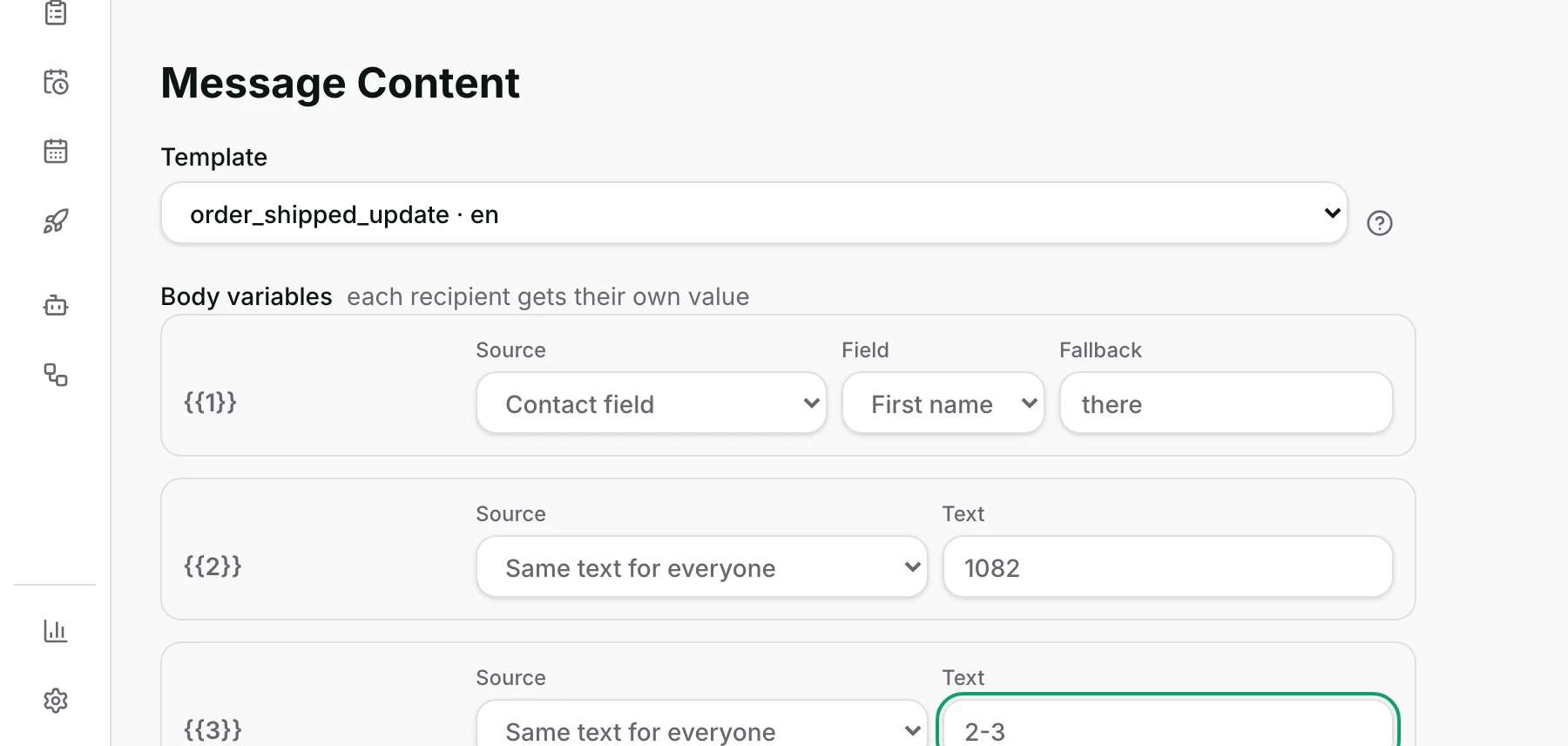
- Click Add Content (or a number's tab), then choose an approved Template — what this number's recipients will receive.
- For each blank pick a Source: Contact field, Same text for everyone or Tracked link.
- A Contact field also needs a Fallback. Fill any Header link and button value.
- Read the preview, then go on to Review. Nothing is sent here.
Watch out
- You cannot write free text. A broadcast always sends an approved template.
- A fallback is required on every blank filled from a contact detail, and it cannot be empty.

Details
Getting here
Broadcasts → open the broadcast → the Message Content section, under Configuration.
Before you start
- A channel has to be chosen first. Clicking Add Content without one outlines the Channel field instead.
- The template must already be approved on that number. Templates are synced under Settings → Templates.
- With Last interacted channel, every ticked number gets its own tab and its own template.
Fields
- Template
- The approved template to send, shown as its name and language.
- Header variable
- The blank in a text header.
- Image / Video / Document URL
- The web address of the picture, video or file a media header carries.
- Body variables
- One row per blank in the message body, numbered the way the template numbers them.
- Contact field
- Fill the blank from that person's Full name, First name, Phone or Email.
- Same text for everyone
- One fixed piece of text.
- Tracked link
- A link each person gets their own copy of, so clicks can be counted.
- Fallback
- What to use when that contact's field is empty.
- Default: there
- Limits: Required, and it cannot be blank: WhatsApp refuses an empty value.
- Buttons
- A quick-reply value, a copy code, or the ending of a link, depending on what the template's buttons are.
- Limits: Only buttons that need a value from you appear.
How it works
- Choosing a template lays out exactly the blanks that template has. Change the template and the rows are rebuilt to match.
- Every body blank starts as First name with the fallback there, so a message reads sensibly before you touch anything.
- A fallback is required on any blank filled from a contact detail, and it cannot be empty: WhatsApp refuses an empty value and would take the whole send down with it.
- A Tracked link gives each person their own copy of your link. Clicks on it are what the report's Clicked and Click rate count.
- Choosing Tracked link renames the box beside it to Link, and that is where the web address goes.
- A text header takes the same three sources as a body blank. A picture, video or document header takes a plain web address instead, the same for everybody.
- Buttons come from the approved template, and only the ones that need a value from you appear. A quick-reply button takes a value your workflow can read, a copy-code button takes the code, and a link button takes the part of the address that changes per person.
- The preview under the rows shows the template with your choices applied.
- What this section accepts is exactly what publishing accepts, because both read the template's shape with the same reader.
- With Last interacted channel, the tabs across the top are your ticked numbers. A tab with nothing written yet carries a red dot.
- Everything saves by itself as you work.
When it fails
- No approved template on that number: No approved templates on this channel — sync them under Settings → Templates.
- Publishing before choosing a template: Pick a template for the message.
- A template that is not approved: Only approved templates can be broadcast.
- A template that belongs to another number: That template belongs to a different channel.
- A blank left with an empty fallback: Give a fallback — WhatsApp rejects an empty parameter. The message points at the row it means.
- With several numbers, one tab left empty: Every selected channel needs a message.
- Add Content clicked before a channel is chosen: the Channel field is outlined and says This field is required.
Limits
- You cannot write free text here. A broadcast always sends an approved template, because many people on a list are outside the 24-hour window in which WhatsApp allows free text.
- You cannot edit the template itself from here, and you cannot add a button the template does not have.
- Only four contact details can fill a blank: Full name, First name, Phone and Email. Your own contact fields are not offered.
- The preview shows your setup, not a real person's message. It does not prove the number is reachable or the picture loads — a test send does that.
- One template per number. Two versions of a message need two broadcasts, or two numbers.
- A media header takes a web address, not a file from your computer.
Best practices
- Write the fallback as a real greeting, not a blank. Every contact with no first name reads it.
- Send yourself a test before you publish. It is the only way to see what the picture and the buttons actually do.
- Use a Tracked link whenever you want to know whether the campaign worked. Without one the report has no click figures.
- Keep the same template name across numbers when you use several, so the tabs are easy to check.
Use cases
- A festival greeting with the customer's first name, and a fallback of there.
- A back-in-stock message with the same text for everybody and one tracked link to the product.
- Two numbers, two brands: one tab each, two templates, one broadcast.
- A voucher template with a copy-code button, where you type the code once.
FAQ and troubleshooting
- Can I just type my own message?
- No. A broadcast always sends an approved template, because many people on a list are outside the 24-hour window in which WhatsApp allows free text.
- What happens to somebody with no first name?
- They get the fallback you typed. That is why it is required.
- Why can I not use one of my own contact fields in a blank?
- The picker offers name, first name, phone and email only. Put the value in the template as fixed text, or split the send by segment.
- Does the preview mean it will work?
- It means your setup is complete. Only a test send proves the picture loads and the buttons behave.
- Can I change the message after publishing?
- No. Cancel the broadcast back to a draft while it is still scheduled, change it, choose the timing again, and publish.
Reading this with an AI assistant? Plain Markdown version.