Filter contacts and save a segment
Build a filter on any contact detail, watch the count change, then save it as a segment a broadcast can send to.
Quick start
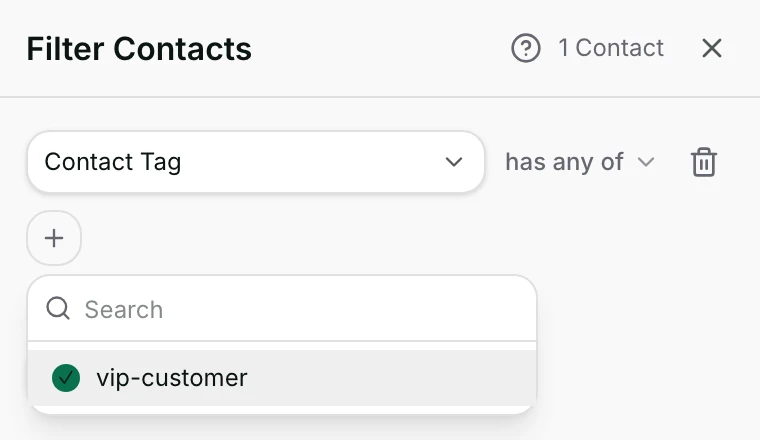
- Open Contacts and click the funnel button beside the search box. On the app, tap Filters.
- Pick a Category, then an Operator, then a value for the row.
- Read the contact count in the panel header. It is how many people the rows match.
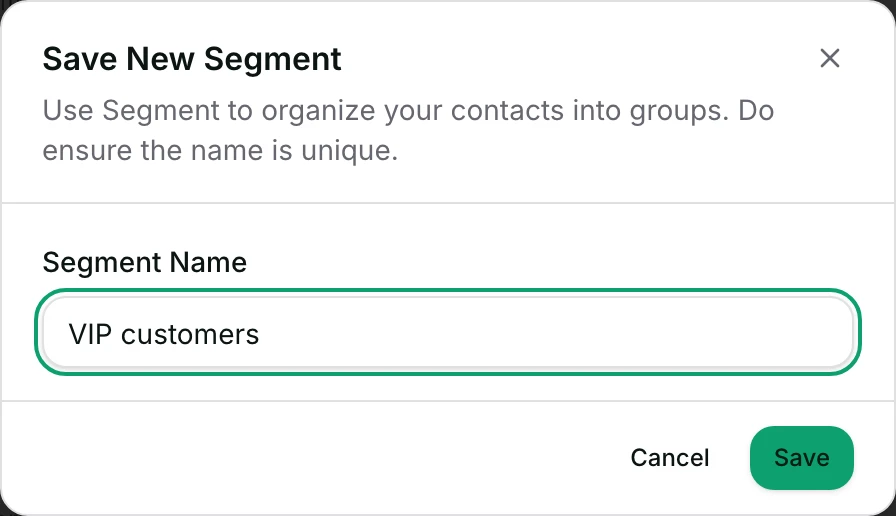
- Click Save as Segment, give it a name, and save. Owners, admins and agents can.
- Find it later under Segments in the left rail. Saving a segment messages nobody.
Watch out
- A segment is a rule, not a frozen list. Who is in it changes as your contacts change.
- A segment does not check marketing consent, so a broadcast built on it can reach fewer people.
Details
Getting here
Contacts → the funnel button beside the search box, which carries the number of rows your filter has. On the app, the Contacts tab → Filters; saved segments are the chips above the list.
Before you start
- Owners, admins and agents can save, rename and delete a segment. A viewer can apply one; the save itself is refused by the database rather than hidden.
- Saving a segment sends nothing; it is a saved question about your contacts. Run a workflow beside the filter is different: that workflow can message the people the filter matches.
Fields
- Category
- What the row asks about: Contact Field, Lifecycle, Channel, Contact Tag, Last Interacted Channel, Time Since Last Incoming Message or From ad.
- Contact field
- Only for Contact Field. Your own fields appear here beside Name, Phone Number, Email Address, Country, Language, Bot Status, Assignee, Collaborators, Conversation Status and the three time fields.
- Operator
- How to compare. Text offers is equal to and contains with their opposites, plus exists and does not exist. A list offers has any of, has all of and has none of.
- Value
- A typed value, a picked value, or several chips.
- Limits: exists and does not exist take no value.
- Timestamp / From / To
- For a comparison against a date.
- Unit
- For a "time since" comparison: seconds, minutes, hours or days, counted back from now or forward from now.
- And / Or
- How the rows join. A filter group is a box of rows carrying its own And or Or.
How it works
- Opening an empty panel starts one row and opens its category menu, so there is always something to fill in.
- The list behind the panel reloads about half a second after you stop editing, so the table and the count follow the rows you build.
- The count in the panel header is how many contacts the rows match. A broadcast built on the same rows sends only to people with marketing consent and a usable number, so its audience can be smaller.
- A row you have not finished is ignored, and rows you never filled in are dropped when the panel closes.
- Save as Segment opens Save New Segment: a name, up to 64 characters, and nothing else. The segment stores the rows, not the people.
- Because it stores the rows, who is in a segment changes as your contacts change. Somebody who earns a tag tomorrow is in it tomorrow.
- Saving from the list opens the new segment, so what you see next is the segment rather than unsaved rows.
- Opening a segment from the rail opens the panel on it. Changing a row then marks the header Unsaved and offers Save and Save as new Segment.
- Reset Filter puts the rows back to the segment's saved version, or clears them when you are not in a segment.
- A segment's ⋮ menu holds Rename and Delete. Deleting asks first, and removes it for the whole workspace.
- Leaving the page with unsaved rows asks Discard unsaved filters?, with Discard filters and Keep editing.
- Filter rows are written once and copied to the app, so a row built on a phone means the same thing as the same row built on the web.
- The app's sheet holds the same Category, Contact field, Operator, Add value, Timestamp, From, To and Unit, and can save a new segment or save over the one you opened.
When it fails
- A row missing its value leaves the filter unfinished, and Save as Segment stays greyed out until it is complete.
- A name another segment already uses: A segment with this name already exists.
- An empty name: the dialog says This field is required and will not save.
- A save the server refuses: Could not save the segment.
- A deleted segment does not stop a draft broadcast that used it. The draft keeps the rules it copied when you picked the segment, and its Segment box then shows All.
- A segment whose rows no longer make sense is listed in the rail by name with only a delete action, so you can read it and get rid of it.
- On the app, a segment built from something the phone cannot run yet says: “This segment uses filters the app cannot run yet. Open it on the web.”
- On the app an unfinished filter says This filter is not complete yet.
Limits
- A segment is never a frozen list of people. If you need the exact people of one moment, export the filtered rows instead.
- A segment does not check marketing consent. That check happens when a broadcast works out who it may send to.
- The VIP only control is not part of a segment. While it is on, the Add segment button beside the filter steps aside.
- A comparison on one of your own fields compares text, not numbers, so no greater-than is offered for one.
- The search box and a filter row are different things. The box reads name, phone and email; a row reads the field you picked.
Best practices
- Build the filter first and watch the count. A segment saved from a filter you have not looked at is a broadcast you have not checked.
- Name a segment after the action you will take with it, not after the rule inside it.
- Use has none of on a tag to leave out people you have already contacted, rather than keeping a separate list.
- Re-open a segment before a broadcast. It is a question, and the answer has moved since you saved it.
Use cases
- Everyone tagged for a product launch who has not bought yet: one Contact Tag row and one Lifecycle row, joined by And.
- People who went quiet: Time Since Last Incoming Message with is greater than (time) and a number of days.
- Everyone who arrived from an ad: a From ad row, saved as a segment you can broadcast to.
- A one-off clean-up: filter on Email Address with does not exist, then tick rows and fix them by hand.
FAQ and troubleshooting
- Does saving a segment copy the contacts into it?
- No. It saves the rules. Who is in it changes as your contacts change, which is why a broadcast works the rules out again the moment it publishes.
- Can I share a segment with a teammate?
- Every segment belongs to the workspace, so your teammates already see it in the rail and in a broadcast's Segment picker.
- Why is Save as Segment greyed out?
- A row is unfinished. Finish the row or remove it. Separately, Add segment beside the filter is hidden while VIP only is on.
- What happens to a broadcast if I delete its segment?
- A broadcast that has already published carries its own list of recipients, so it is unaffected. A draft reads the segment's rules as they are when it publishes, so editing a segment changes the draft. Delete the segment and the draft falls back to the rules it copied when you picked it, with Segment showing All.
- Can I filter on something a workflow saved?
- Yes, if it was saved into one of your own contact fields. Pick Contact Field and choose that field by name.
Reading this with an AI assistant? Plain Markdown version.