The contacts list
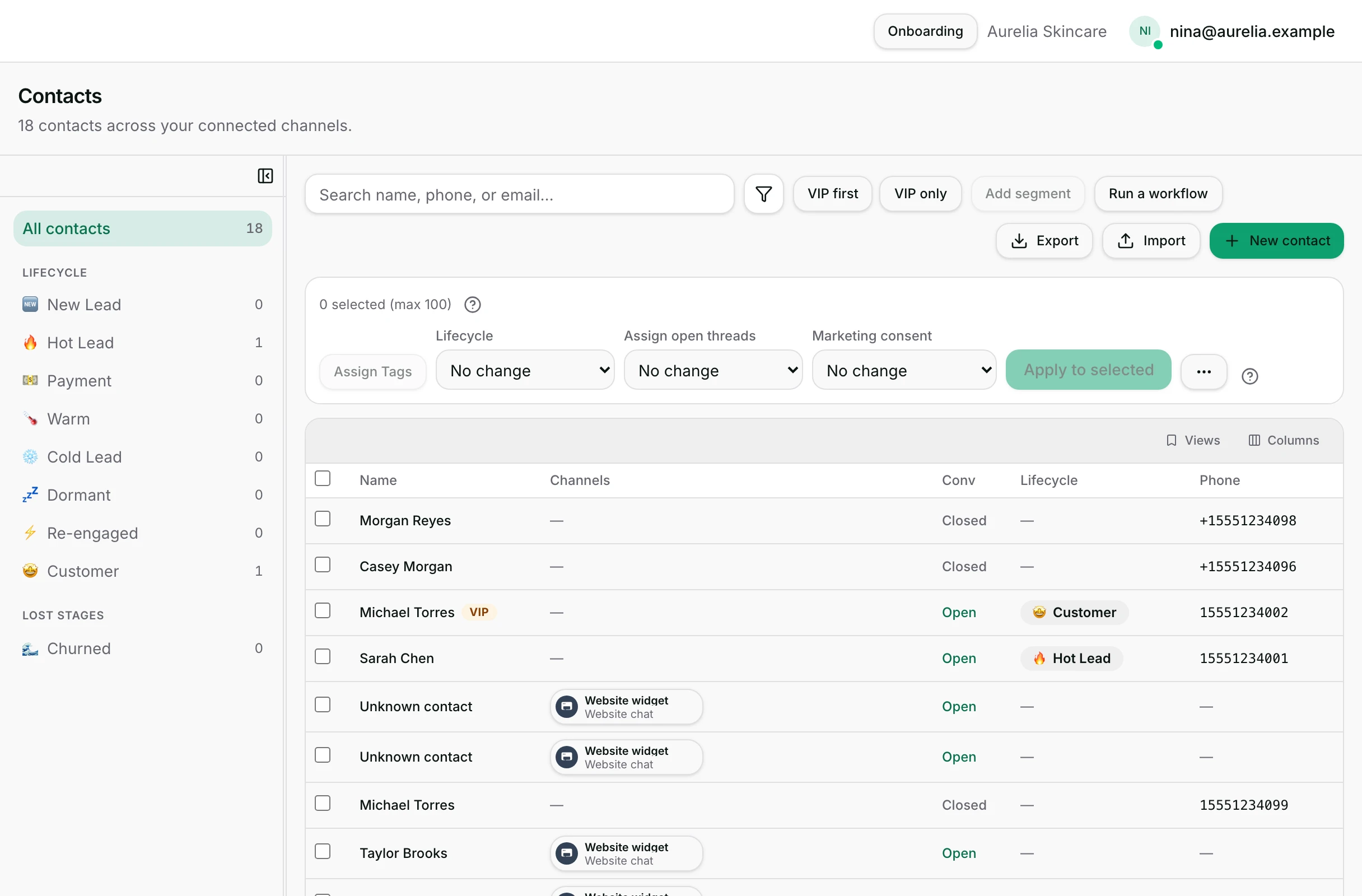
One table of everyone who has ever messaged you, with the headings, sort and saved field setups you choose.
Quick start
- Click Contacts in the left sidebar. On the app, open the Contacts tab.
- Type a name, phone or email in the search box to find one person.
- Click a row to open that person's full profile. Owners and admins see everyone; others see what their access allows.
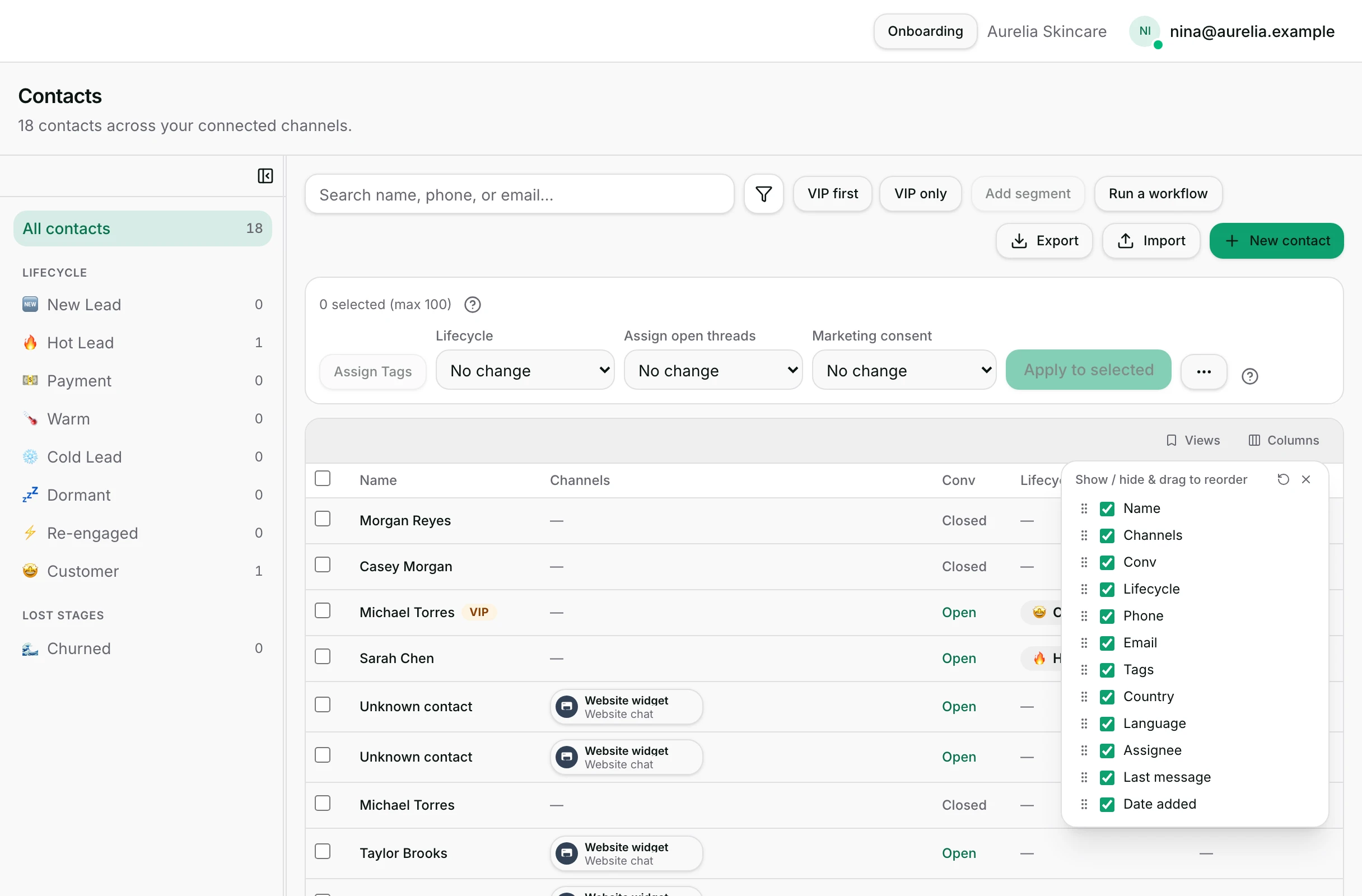
- On the web, open ⋯ and pick Customize Columns to choose which headings show.
- Tick rows to act on several people at once. Run a workflow beside the filter can message them.
Watch out
- A saved view keeps your fields, not your search, filter or sort. Save a filter as a segment instead.
- Mark as consented is refused in bulk. Consent is recorded one person at a time.
Details
Getting here
Contacts in the left sidebar. On the app, the Contacts tab shows the same people as a card list rather than a table.
Before you start
- Anyone in your workspace can open Contacts. Owners and admins see every contact; others see the ones their Channel access and conversation visibility allow.
- A viewer does not get the New contact button.
- Only an owner or an admin can export the list or import one.
- You do not add people by hand for this. A contact appears the first time somebody messages a connected channel.
Fields
- Name
- The name on the record, or Unknown contact. A VIP badge sits beside it.
- Limits: Sortable.
- Channels
- Every account this person writes to you from. Extra ones fold into a +N chip.
- Conv
- Open when a conversation with them is open right now, otherwise Closed.
- Lifecycle
- The stage they are on. Click the pill to change it without leaving the list.
- Phone
- The number, stored in international form.
- Limits: Sortable.
- The address on the record.
- Tags
- Their contact tags. Click to edit them where they are.
- Country
- The country on the record.
- Limits: Sortable.
- Language
- The language on the record.
- Limits: Sortable.
- Assignee
- Who owns their most recent conversation.
- Last message
- How long ago they last wrote, or were written to.
- Date added
- The day this person first appeared.
- Limits: Sortable.
- Mark as consented
- Does nothing at the moment: every attempt is refused, because a recorded consent has to say how that customer agreed.
- Limits: Use Withdraw consent for a bulk change, or record a consent one person at a time.
- Withdraw consent
- Records that everyone ticked has asked to stop receiving marketing.
- Limits: Up to 100 ticked people at once.
How it works
- The list is read from the server one page at a time. The search box, the filter and the left rail each reload the page rather than reordering what is already on screen.
- The left rail has three groups: All contacts with a total, Lifecycle with one row and a count per stage, and Segments with your saved filters. A stage you marked as lost sits under Lost stages.
- Search looks at name, phone and email. It does not read tags, notes or the words inside messages.
- Five headings sort the list: Name, Phone, Country, Language and Date added. The rest are not clickable.
- With no sort chosen the list is ordered by last activity, newest first. No heading lights up for that order, because it has no heading of its own.
- Contacts per page offers 25, 50 or 100, and the line beside it says which rows you are looking at out of the total.
- Customize Columns in the ⋯ menu opens the field chooser. Tick a field to show or hide it, drag one to reorder it, and use the reset control to put everything back.
- Views saves the setup you built. A view here keeps which fields show, their order and their widths — not your search, your filter or your sort, which live in the web address.
- A saved view is yours unless you tick Share with workspace while saving it. A shared one carries a Shared badge for its author and a Team badge for everybody else.
- VIP first and VIP only appear only when your workspace is linked to the shop data that carries lifetime spend. Without that link there is nothing to rank by, so neither control is drawn.
- The VIP badge means lifetime spend is at or above this workspace's VIP threshold.
- The bar above the table acts on the rows you tick: assign tags, set a lifecycle stage, Assign open threads to a teammate, or record a withdrawal of marketing consent.
- Tick every row on the page and a line offers Select all {count} contacts. That mode has no list of people behind it, so tagging, staging, assigning, consent and Merge all switch off. Export still works, because it can run the filter again.
- A hand-picked selection is capped at 100 people. Ticking past the cap keeps the earlier ticks and drops the newest.
- Export to CSV downloads the rows you ticked, or the whole current filter when nothing is ticked.
- On the app the same list has search, Filters and Sort, plus chips for saved segments and lifecycle stages. Sort there offers Last interaction, Name and Date created.
- With the shop link, the app adds a VIP toggle and a VIP first sort.
When it fails
- The page cannot reach the data: Could not load contacts. Please try again shortly.
- A filter matches nobody in a workspace that does have contacts: No contacts match this filter and Clear or widen the filter to see the rest of your contacts.
- A workspace with no contacts at all sees No contacts yet instead, with links to connect a channel or import a list.
- Acting on a "select all matching" selection is refused, and the reason names the cap on a hand-picked selection.
- A bulk change that did not land on everybody says so, and tells you to open those contacts to see why.
- Export to CSV is greyed out for anybody who is not an owner or admin: Only workspace owners and admins can export contacts.
- A bulk opt-in is refused before anything is written, and the message says so: “Bulk opt-in isn't available — a recorded consent has to say how each customer agreed. Open the contact and use Marketing consent. Bulk opt-OUT is available here.”
Limits
- Mark as consented in the bulk bar does nothing. It is offered, and every attempt is refused. Only Withdraw consent works on ticked rows.
- A saved view does not remember a search, a filter, a segment or a sort. Save a filter as a segment instead.
- Views and field choices are saved to your account, so they follow you rather than the workspace. A view you share with Share with workspace is the exception.
- There is no grouping, no drag-to-reorder and no hide on the contact rows themselves. The list is paged over the whole workspace, so an order made from one page would not mean anything.
- The app has no field chooser, no saved views and no export.
- Run a workflow beside the filter runs a published workflow for the matching people who have marketing consent, and that workflow can message them. Nothing else on this page sends a message.
- An export is a snapshot of that moment, not a feed that keeps updating.
Best practices
- Give a segment a name that says what it is for. The rail is where you will look for it a month later.
- Hide the fields you never read. A narrower table is readable on a laptop without scrolling sideways.
- Use search for one person and a segment for a group. Search reads name, phone and email only.
- Check how many rows are ticked before a bulk change. The change touches only the ticked rows, up to 100.
Use cases
- Sarah Chen calls about her order and you need her record fast: type her number in the search box and open the row.
- You want to see who is still sitting at one stage: click that stage in the left rail and read the count beside it.
- You are preparing a promotion: build the filter, save it as a segment, then pick that segment in a broadcast.
- A teammate leaves: filter by them under Assignee, tick the rows, and Assign open threads to somebody else.
FAQ and troubleshooting
- Why does the same person appear twice?
- They wrote from two different accounts and the two records were never joined. Tick both rows and merge them; unblock first if either is blocked.
- Can I search by tag?
- Not in the search box, which reads name, phone and email. Build a filter on Contact Tag instead, which is what segments are for.
- I saved a view and my filter came back empty.
- A view on this page saves fields, not filters. Save the filter as a segment and it will be in the left rail.
- Why can I not tick more than a hundred people?
- A bulk change is capped at 100 so one click cannot quietly rewrite a whole workspace. Use a segment and a workflow for anything larger.
- Where did the VIP buttons go?
- They appear only when your workspace is linked to the shop data that carries lifetime spend. Without that there is no spend to rank by.
- Why is Mark as consented always refused?
- A recorded consent has to say how that customer agreed, and a bulk change has nowhere to say it. Record consent on the contact, one person at a time.
Reading this with an AI assistant? Plain Markdown version.