Import contacts from a file, and export them
Upload a spreadsheet, match each heading to a contact detail, choose whether existing people are updated, and run it.
Quick start
- As an owner or admin, open Contacts and click Import. There is no app screen.
- Upload or paste a file whose first row holds the headings, then click through to Mapping.
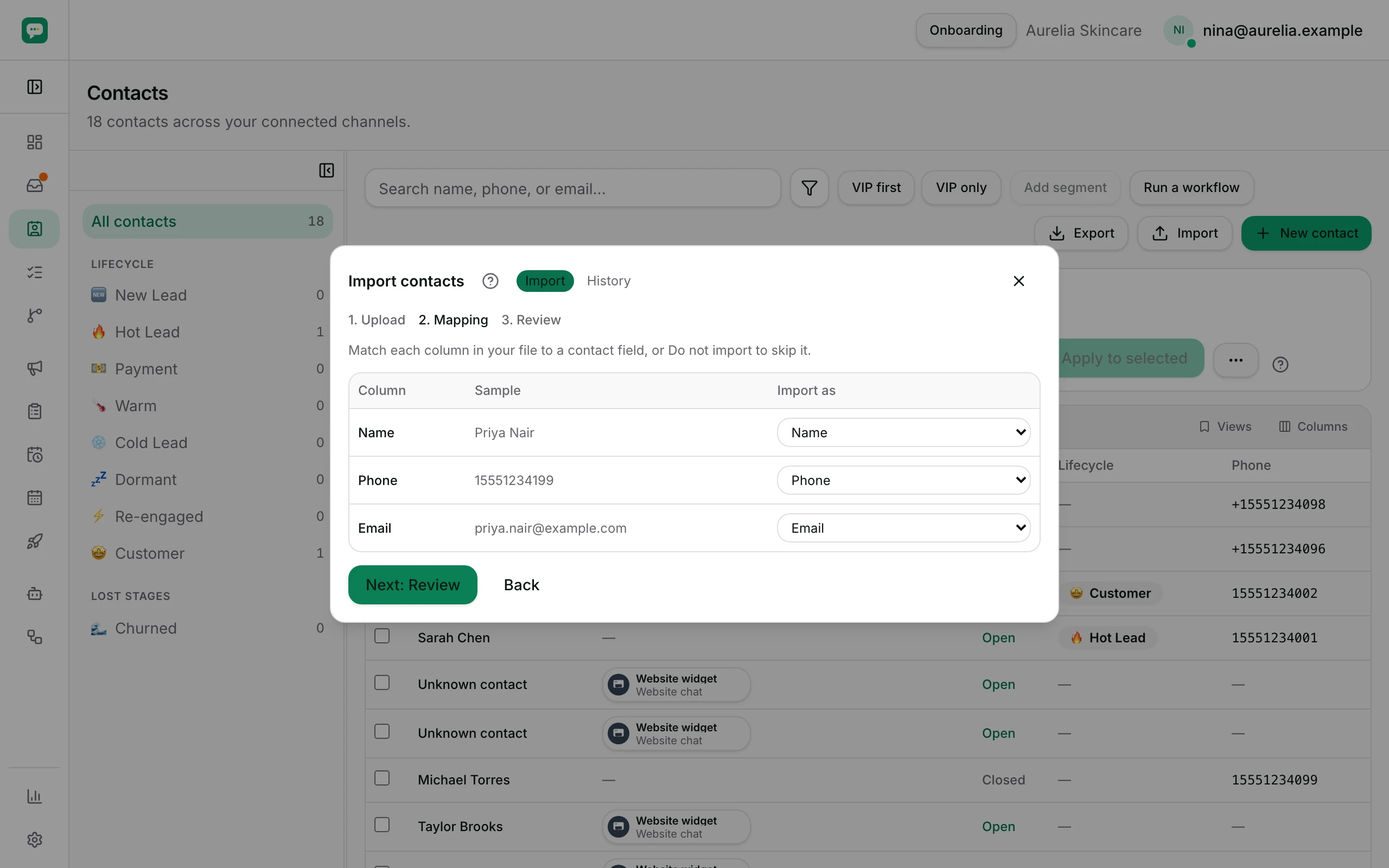
- Set Import as for each heading. At least one must be Phone or Email.
- Pick Add new contacts only, Add new and update existing, or Update existing contacts only.
- Click Import, then read Added, Updated and Errors. Nobody is messaged.
Watch out
- Importing gives you no permission to market to those people. Consent is recorded per person.
- There is no undo. Import ten rows, read the result, then import the rest.
Details
Getting here
Contacts → Import, at the top right beside Export. The dialog has an Import tab and a History tab. The app has no import screen, so use a computer.
Before you start
- Only an owner or an admin may import or export. The server refuses an import from anyone else with Only workspace owners and admins can import contacts.
- Your file needs a header row. Without one, the first row of real data would be read as headings.
- The upload accepts a CSV file only, and you can paste the text of one instead.
- A number that starts with
+is read as it stands. One without a+is read as a local number and given the importer's default dialling code, so include the+when your list mixes countries. - At least one heading has to become Phone or Email. That is how a row is matched to somebody you already have.
- Download a sample file in the first step gives you a file with the right headings, including your own contact fields.
Set up
- Upload — drop the file in, or paste the text.
- Mapping — the wizard guesses from common heading names and you correct it. Each heading becomes Name, Phone, Email, Country, Language, Lifecycle stage, Tags, one of your own fields, or Do not import.
- Choose what the import should do, and optionally type a tag to put on everyone it touches.
- Review — the wizard reads the whole file and tells you how many rows are new, how many match somebody, and how many are broken. Nothing is written yet.
- Import — the run happens, and its result appears with Added, Updated and Errors.
Fields
- Add new contacts only
- Existing contacts (matched by phone or email) are left alone.
- Limits: A batch tag still reaches them, and is counted separately.
- Add new and update existing
- New contacts are created; matched contacts are updated.
- Update existing contacts only
- No new contacts are created.
- Add a tag to all imported contacts (optional)
- One tag put on every row this file touches, which is the easiest way to find them again.
How it works
- A row matches somebody you already have by phone or by email. That is why the mapping step will not let you past without one of them.
- Every phone is stored in international form. A number the importer cannot read that way fails its row instead of being stored as typed, because the number is what sending and duplicate-finding look a person up by.
- A row with no name, no phone and no email is skipped, and reported.
- Review counts with the same reader the real run uses, so the numbers you approve are the numbers you get.
- The run writes a history record before it starts, so an import that dies halfway still leaves a record rather than disappearing.
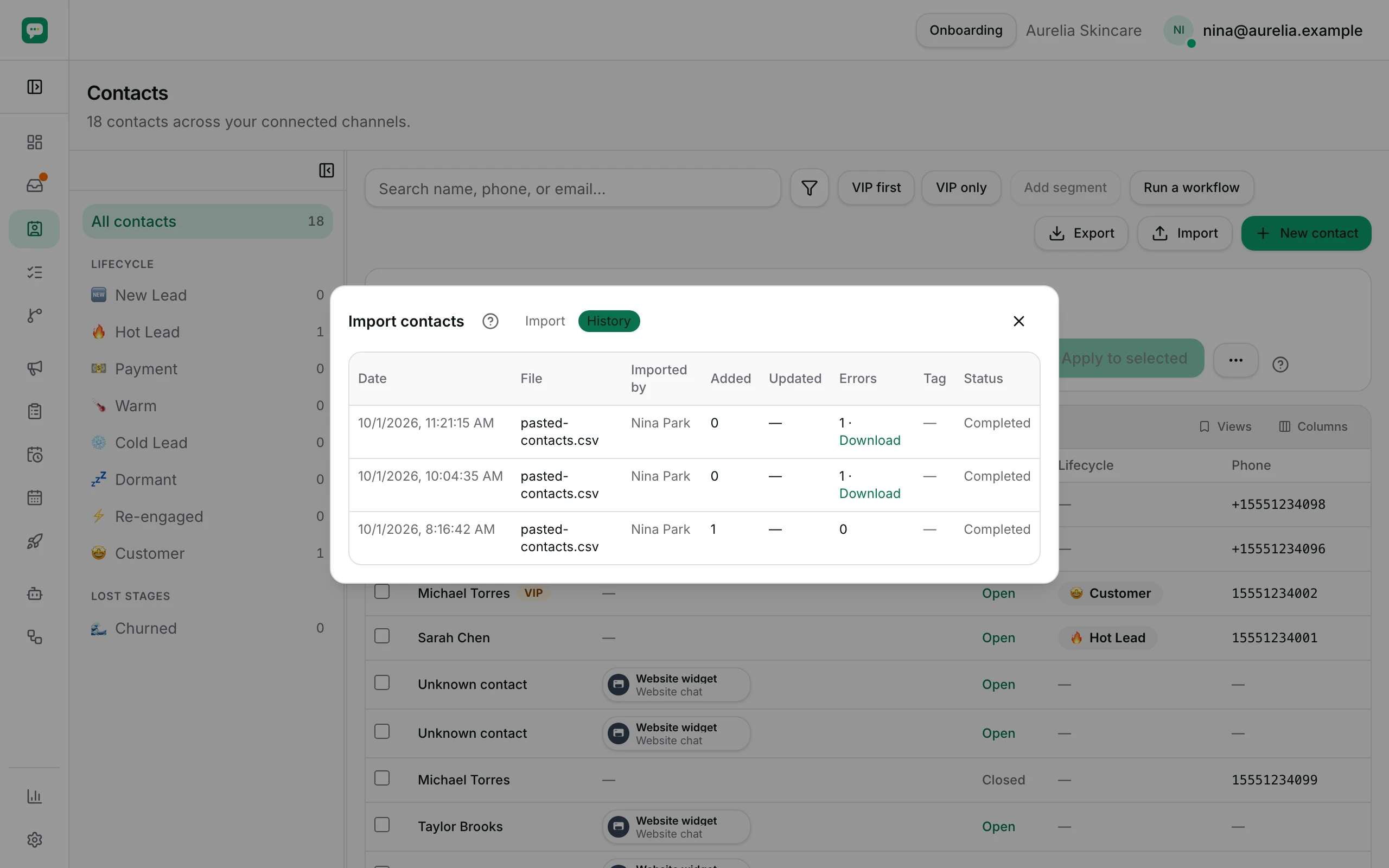
- History lists Date, File, Imported by, Added, Updated, Errors, Tag and Status. Status is Processing, Completed, Failed or Expired.
- A finished run's per-row error list can be downloaded for 7 days. After that the row says Expired and the download is no longer offered.
- One import runs per workspace at a time. A run that crashed and left your workspace stuck clears itself after half an hour, so the next import is not refused.
- In Add new contacts only, the people who merely received the batch tag are counted separately, so that mode never claims to have updated anybody.
- Export downloads the rows the current filter matches, as a spreadsheet file. Ticking rows first exports only those.
When it fails
- A file with no header row: Couldn't read that file. It needs a header row.
- No heading mapped to phone or email: Map at least one column to Phone or Email to continue.
- The same heading mapped twice is called out on its own row with Mapped more than once.
- A phone the importer cannot read is reported on its line as an invalid number and skipped. Every other row still runs.
- A file of more than 50,000 contacts is refused up front, with a message asking you to split it.
- A run that fails leaves a Failed row in History rather than a silent gap.
- Up to five hundred row errors come back to you in detail. Anything beyond that is reported as a count.
Limits
- Importing does not give you permission to market to those people. Marketing consent is recorded per person, and never arrives in a file.
- Importing sends nothing. Nobody is messaged because they were imported.
- It does not join duplicates. Two rows that are the same person and match on nothing become two contacts, which you then merge.
- Update existing contacts only never creates anybody, so rows for people you do not have are counted as neither added nor updated.
- There is no undo. An import that went the wrong way is corrected by another import, or by hand.
- The export is a snapshot of the filter at that moment.
Best practices
- Import ten rows first. Read the result, then import the rest.
- Start from Download a sample file. It already carries your own field headings with the right spellings.
- Put a batch tag on every import. It is the cheapest way to find everything one file brought in.
- Keep the dialling code with every number. A number without one is the commonest reason a row fails.
- Import into a staging lifecycle stage rather than straight into an active one, so the new list is easy to check before anyone acts on it.
Use cases
- You are moving from another tool: export there, match the headings here, and run Add new and update existing.
- A trade show gave you a list: import it with a batch tag, then build a segment on that tag.
- Your records have better names than your chats do: run Update existing contacts only, so nobody new is created.
- A teammate asks for everyone at one stage: click that stage in the rail, then Export.
FAQ and troubleshooting
- Will importing message anybody?
- No. An import only writes contact records. Sending is a broadcast, and a broadcast checks marketing consent separately.
- Can I import a list I bought?
- You can put the records in, but you cannot market to them until each person's consent is recorded with a basis. See marketing consent.
- What happens to a person who appears twice in my file?
- Both rows run. The second one matches the contact the first created, so in the two update modes the later row wins.
- My file has a "Notes" heading. Where does it go?
- Nowhere, unless you have a contact field of your own for it. Map it to Do not import, or create the field first.
- Why is my error file gone?
- A finished run's error list is downloadable for 7 days. After that the history row says Expired.
Reading this with an AI assistant? Plain Markdown version.