Everything you know about a contact
The panel beside a conversation and the full profile page show one record — details, notes, files, activity and calls.
Quick start
- Open a conversation in Inbox. On the app, tap the contact's name instead.
- On the web, read the panel on the right; if it is folded to a thin strip, click its arrow.
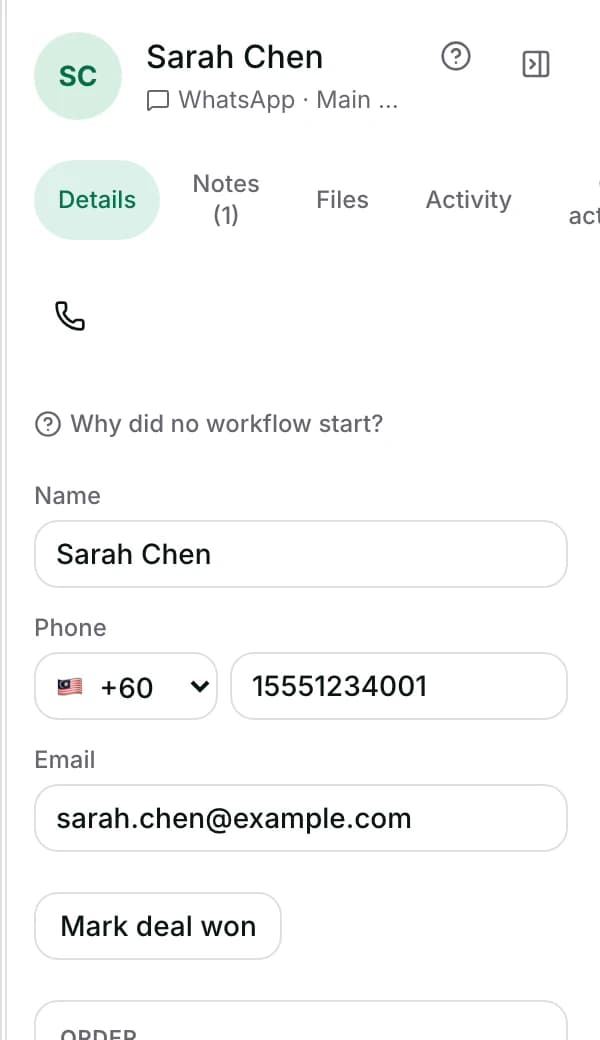
- On the web, switch between Details, Notes, Files, Activity and Call activities.
- Click Open full profile → for the whole record and every past conversation.
- Edit Name, Phone, Email or a field by clicking it, then clicking away. Viewers cannot change them.
Watch out
- Deleting a note hides it from you alone. Your teammates still see it.
- The note box here cannot mention anybody, so it notifies nobody.
Details
Getting here
Beside a conversation: Inbox → open a conversation → the panel on the right. For the whole record: Contacts → click a row, or Open full profile → from the panel. On the app: open a conversation and tap the contact's name, or open the Contacts tab and tap a row.
Before you start
- Everybody in your workspace can read the panel. Owners, admins and agents can change what is on it.
- The panel and the page are the same record, loaded the same way, so an edit in one shows up in the other.
- Some blocks appear only when your workspace has the thing they describe — appointments, shop data, ad details.
Fields
- Details
- Everything about the person, in one stack.
- Notes ({count})
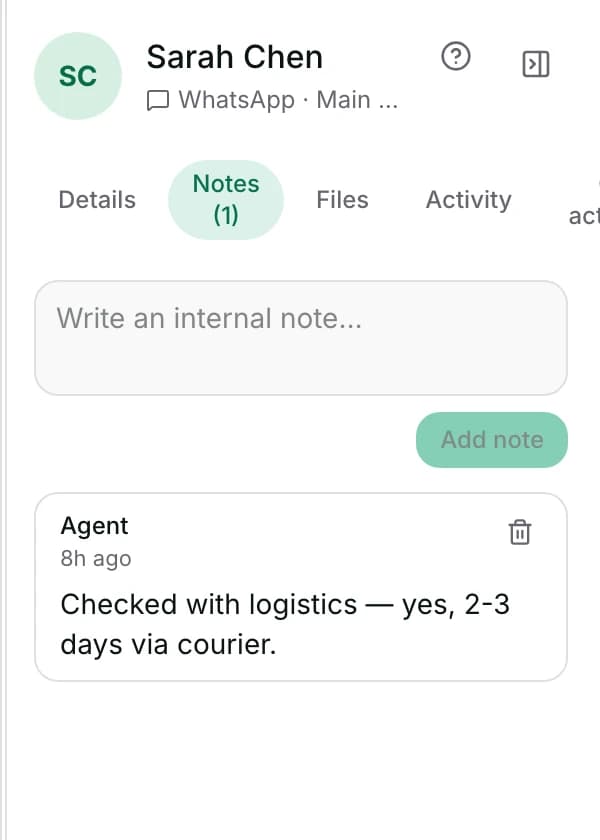
- Every internal note written about this person, newest first.
- Files ({count})
- Every photo and file they have shared.
- Activity
- One merged history of what has happened to them.
- Call activities
- Calls with this contact, in or out.
How it works
- On Details the blocks appear in a fixed order: a blocked warning when they are blocked, then Name, Phone and Email, then a duplicate suggestion under Possible same person.
- Attribution follows, with the Ad ID and the Click-to-WhatsApp click ID, then Channels ({count}), then Lifecycle and your own contact fields.
- Then Appointments, Returning customer and What we remember, then the shop blocks with Lifetime value, Orders, Last order, Segment and Interested in.
- Country and Language sit under Profile, then Marketing consent, then Conversation, Owner and Last rating. Tags and Conversation tags stay pinned at the bottom.
- The arrow at the top of the panel folds it to a thin rail and opens it again. It remembers which way you left it.
- You can drag its left edge to make it wider, up to a share of the window, so the conversation beside it is never squeezed out.
- Name, Phone and Email save when you click away, and only if something changed. A refused save puts the old value back.
- The number box holds the local part, and the picker beside it holds the dialling code, so a number is never shown with its country code twice.
- Your own contact fields save one at a time, and the value is read back from the server rather than trusted as typed.
- Notes are internal. A note added here also appears in the conversation, because both write the same note.
- Deleting a note only hides it from you. The message that confirms it says so, and offers Undo.
- Files lists photos as a grid and everything else as rows with a Download link. It is read-only.
- Activity merges lifecycle changes, assignments, conversations opening and closing, tag changes, blocks, collaborators, ratings, broadcasts, workflows, ad sources, appointments, tasks and merges into one list, newest first.
- A row that happened on a different conversation links to it.
- The full profile page adds First seen, Last seen and a list of every conversation with this person.
- The shop and attribution blocks are copies of what another system knows. They are shown here, not edited here.
- When the shop lookup cannot decide who this is you see No matching customer in commerce or Multiple matching customers — not linked, and when it is unreachable, Commerce lookup unavailable.
- A VIP badge beside the name means lifetime spend is at or above this workspace's VIP threshold.
- What we remember holds facts the AI picked up from the conversation. Each one can be edited or deleted here, and links to its conversation with From this conversation when it came from one.
- The app shows the same record in an order built for a narrow screen. Who they are and how to reach them come first, then the funnel and what they have bought, then where they came from.
When it fails
- The contact cannot be loaded: Could not load this contact., on the web and on the app.
- A detail that will not save: Could not save.
- A note that will not delete: Could not delete this note. Please try again., and the note comes back.
- A remembered fact that will not change: Could not change that. Try again.
- A blocked contact shows Blocked contact — hidden from active views at the top of Details.
- Nothing has happened yet: Nothing has happened to this contact yet.
- Nothing shared yet: No files shared yet.
Limits
- The note box on this panel cannot mention a teammate, so a note written here notifies nobody. Write the note in the conversation when somebody has to be told.
- Deleting a note is only for you. Your teammates still see it.
- Activity reads up to a hundred entries of each kind, so a very busy contact's oldest history is not all there.
- The shop, attribution and shipment blocks cannot be edited here, and an empty one means no match was found rather than data lost.
- Files cannot be added from here. Files arrive by being sent in a conversation.
- The app has no Files tab and no Activity tab. Its contact screen carries Media, Docs and Links tabs for what has been shared, and Show more lengthens each one.
Best practices
- Put the reason in a note before you hand a conversation on. The next person reads the panel, not your memory.
- Use Activity to answer what happened to this customer before you ask a teammate.
- Check Channels when a reply does not seem to arrive. You may be answering on a number they no longer use.
- Fix a wrong number here rather than in a spreadsheet. It is the value sending and duplicate-finding both use.
Use cases
- Sarah Chen calls back and you have ninety seconds: read the panel's top four blocks before you answer.
- A teammate asks what happened with Michael Torres: open Activity and read it top to bottom.
- A customer says they never got your reply: check Channels for the account they actually use.
- You promised a discount last week: look under What we remember and under Notes.
FAQ and troubleshooting
- Is the panel the same thing as the full profile?
- Yes. Same record, same edits. The page adds First seen, Last seen and the list of past conversations.
- If I delete a note, is it gone for everyone?
- No. It disappears for you alone, and the message that confirms it says so.
- Does mentioning somebody in a note here notify them?
- The note box on this panel has no mention picker, so nothing is sent. Write it in the conversation instead.
- Why is the Commerce block empty?
- Nobody in the shop data matched this person, or the lookup was unavailable. The panel says which, and neither one means you lost anything.
- Can I change the Ad ID?
- No. Attribution is a record of where this person arrived from, and it is read-only.
Reading this with an AI assistant? Plain Markdown version.