Send an approved template, a flow or a product
Three quick-send rows start a conversation outside the reply window, run a chosen flow, or send items from your catalogue.
Quick start
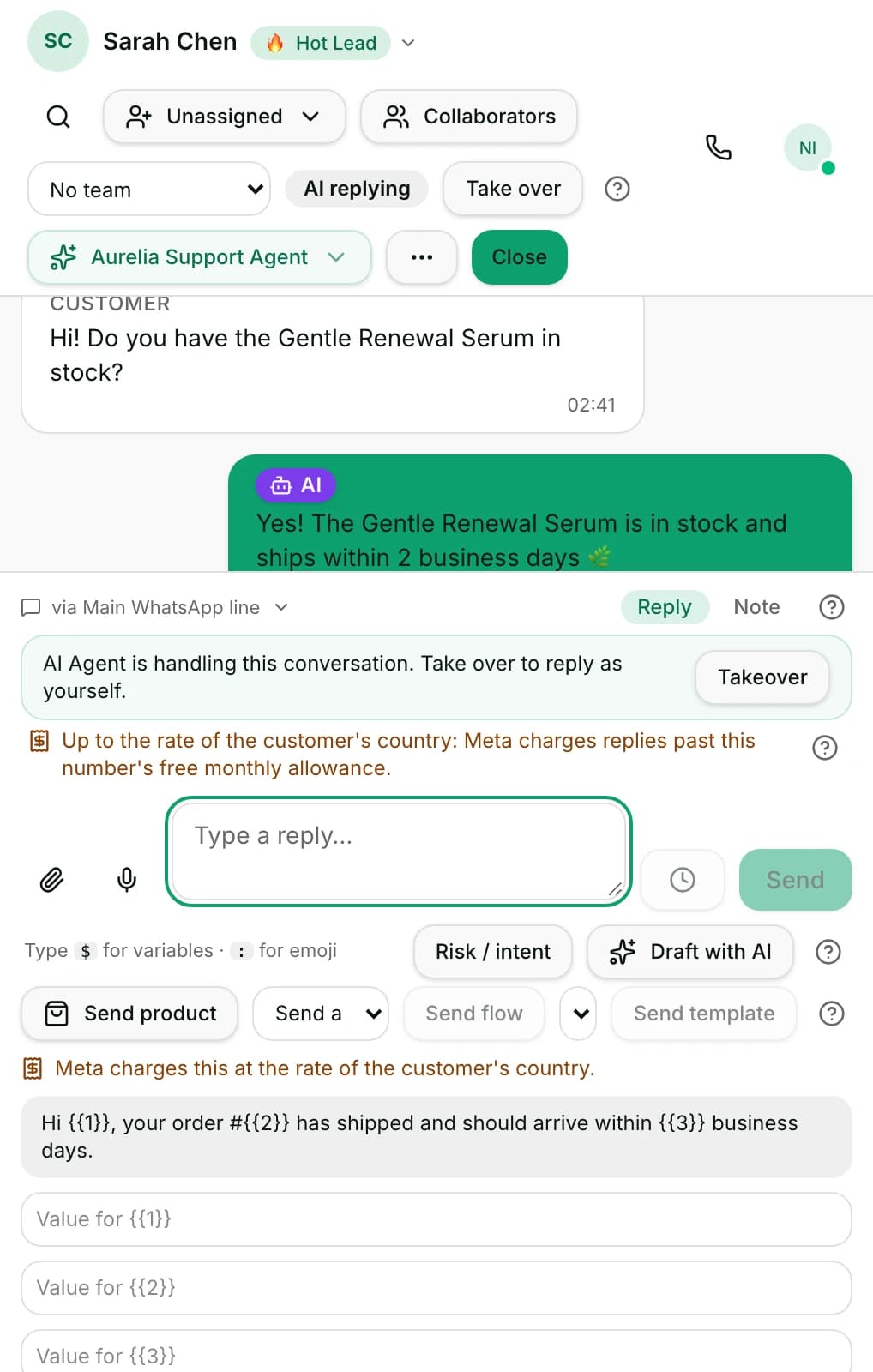
- Open Inbox and click a conversation. Owners, admins and agents can send; viewers cannot.
- Below the box, open Send an approved template… and pick one. In the app, tap + then Choose a template.
- Fill in each Value for {placeholder}; the preview above updates as you type.
- Read the cost line, then click Send template. It goes to the customer straight away.
- To run a workflow, pick one under Send a flow… and click Send flow. Its steps may message the customer.
Watch out
- A template you send by hand is not checked for marketing consent. Marketing templates inside a flow are checked.
- A template is usually charged. Read the cost line above the preview before you send it.
Details
Getting here
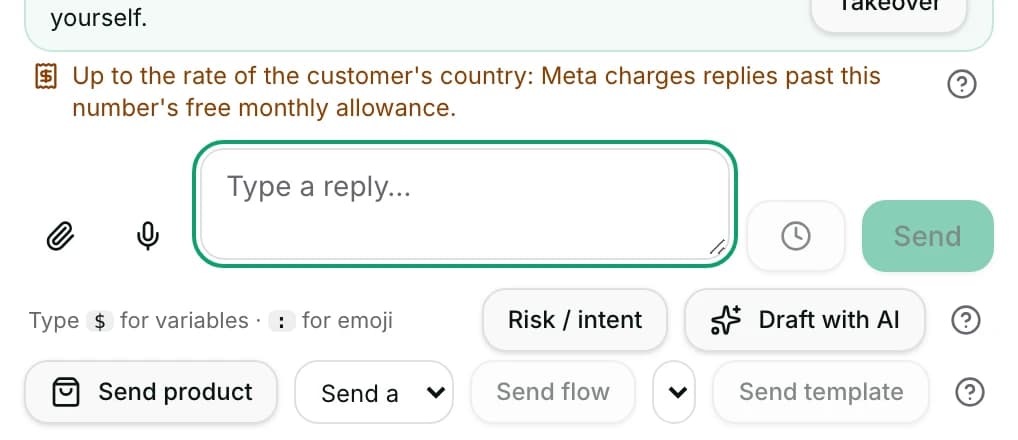
Inbox → open a conversation → the rows just below the composer: Send an approved template…, Send a flow… and Send product. In the app: tap + beside the reply bar for Choose a template, Send a flow and the product sheet.
Before you start
- An owner, admin or agent can send. A viewer cannot.
- Templates are WhatsApp only, and only ones Meta has already approved on this number appear.
- A flow only appears in the list when it is published, switched on, and its Show in Send a flow setting is ticked in the workflow editor.
- Products need a Meta catalogue linked to this WhatsApp number, and synced.
Fields
- Send an approved template…
- The approved templates on this WhatsApp number, by name and language.
- Limits: WhatsApp only. A template Meta has not approved never appears.
- Value for {placeholder}
- What goes into each gap in the template's text. The preview shows the result.
- Limits: Up to 1,024 characters each. Send template stays off until the template is usable.
- Send a flow…
- A published workflow to start on this conversation.
- Limits: Only workflows with Show in Send a flow ticked. That setting also decides the Run a workflow… list, and nothing else.
- Send product
- Items from the catalogue linked to this number. Search by name or SKU.
- Limits: Hidden once the WhatsApp window has closed.
How it works
- WhatsApp only allows free text for a while after the customer writes in. Once that has passed, the template row is how you reach them, and the notice above it says so.
- The template list shows each template's name and language. Picking one shows its text with your values in it, so you read what the customer will read.
- A template with gaps shows one box per gap. Send template stays switched off until the template is usable.
- Before anything is sent, the template is checked against the approved ones on this number and against the values you filled in. A template that fails either check is stopped here with a reason.
- The cost line above the preview says what this template costs, naming its category: marketing, utility or authentication.
- The flow list is a curated one: only workflows somebody ticked Show in Send a flow on. That setting also decides the Run a workflow… list; automatic triggers keep running either way.
- When the chosen flow asks for details first, its form appears under the row and must be filled before Send flow works.
- A flow started here either runs at once — {name} ran — or is queued: {name} queued, with It runs in the next minute or so.
- Send product opens the synced catalogue. Search by name or SKU, and Bought before, per Inseller marks items this customer has bought.
- You can pick up to 30 products in one message. Your message text becomes the card body.
- Two to ten products can go as Swipe cards. Pick more and it goes as a List instead, which the picker says on the count line.
- The product row disappears once the WhatsApp window has closed, so a product card cannot be sent where WhatsApp would refuse it.
When it fails
- No approved templates available means this number has no approved template synced. Approving one is done in channel settings, not here.
- That template isn’t approved on this WhatsApp number means the one you picked is no longer approved. Open Settings → Templates and press Sync from Meta on that number, then try again.
- Pick the template again — the list changed. appears when the list was refreshed under you.
- Template not sent and Check template status are what you see when the send is refused or its delivery is not confirmed.
- No flows available to send means no published workflow has Show in Send a flow ticked.
- Could not queue that flow. and Flow not sent mean the flow was not started. Nothing ran.
- No products match. means your search found nothing in the synced catalogue.
- Some of those products are not in the synced catalog means the catalogue is behind. Syncing it fixes the send.
- No catalog is linked to this WhatsApp number yet means the number has no catalogue at all. The message points at Settings › Catalog.
- Product not sent is what you see when the product message is refused.
Limits
- None of these three creates a template. A template has to be submitted and approved by Meta before it appears here.
- A template send is usually charged. The cost line above the preview says what that message costs, or that it is free — as it is inside the free entry window.
- The composer does not check marketing consent before sending a template. Broadcasts check it, and so does a workflow's marketing template step — including a flow you start from Send a flow.
- You cannot add a free-text sentence to an approved template. Only its gaps are yours to fill.
- Sending a flow here does not edit it. Changing what the flow does is the workflow builder, which is on the web only.
- A template or flow sent here is not undone by anything. There is no recall.
- Products and templates are WhatsApp features. They do not appear on Messenger, Instagram or the other channels.
Best practices
- Keep one approved template whose only job is to invite a reply. It reopens the conversation for free text at the lowest cost.
- Fill every gap from what you can see in the conversation, and read the preview before sending. The customer reads exactly that.
- Tick Show in Send a flow on the two or three flows agents really start by hand, and leave the rest out of the picker.
- Send products from the catalogue rather than pasting links: the card carries the price and the picture, and the customer can reply to it.
- When the window has closed, decide between a template now and a cheaper wait. The cost line gives you the number to decide with.
Use cases
- Sarah Chen asked about stock two days ago; the window has closed, so you send the approved back-in-stock template.
- Michael Torres wants the three items he looked at: search the catalogue, pick three, send them as swipe cards.
- A returning buyer asks for the same set again: search Bought before, per Inseller and send it in one message.
- Someone asks for the booking steps: start the flow that asks the questions instead of typing them.
- A customer who has never written to you needs an order update: the only way to reach them first is an approved template.
FAQ and troubleshooting
- Why must I use a template at all?
- WhatsApp only allows free text for a while after the customer's last message or call. Outside that, only a template Meta has approved may be sent.
- Is a template free?
- Only inside the free entry window, or where the cost line says so. Otherwise Meta charges for it at its category's rate, and the line above the preview says which.
- I know we have a workflow, but Send a flow does not list it.
- The picker lists only published, switched-on workflows with Show in Send a flow ticked. Tick it in the workflow editor and it appears.
- Can I edit the wording of a template here?
- No. You can only fill its gaps. The wording is what Meta approved.
- How many products can I send at once?
- Up to 30. Between two and ten go as swipeable cards; more than that goes as a list, and the picker tells you which it will be.
- Does sending a template check whether the customer agreed to marketing?
- No. A template you send by hand goes as you chose it. Broadcasts do check it, and so does a workflow's marketing template step, so a flow started from Send a flow skips a marketing template for a contact who has not agreed.
Reading this with an AI assistant? Plain Markdown version.