Request WhatsApp Contact Info
Show WhatsApp's own Share Contact Info button, so a username-only chat can hand you a real phone number to message.
Quick start
- Go to Automate → Workflows and open a workflow. Click + and pick Request WhatsApp Contact Info.
- Write the message shown above the button — for example, "Please share your contact info so we can follow up."
- Set Status to Published in the top toolbar, Save, confirm Publish. Agents: ask an owner or admin.
Watch out
- The workflow does not wait for the tap. Steps after this one cannot tell whether the customer shared their number.
- Nothing is sent once 24 hours have passed since the customer last wrote or called.
Details
Getting here
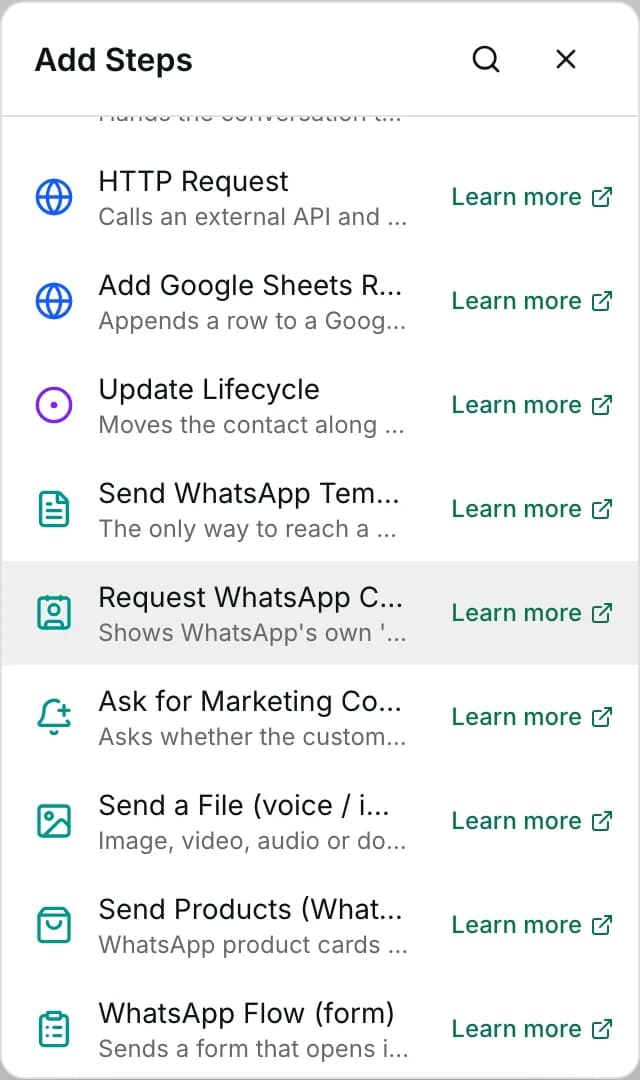
Automate → Workflows, open a workflow, click + on the canvas, then pick Request WhatsApp Contact Info under Add Steps.
Before you start
- An owner, admin or agent can add this step and save the workflow. Only an owner or admin can publish it, and publishing is what makes it run on live conversations.
- Building and running workflows depends on your plan; see pricing.
- Nothing outside Inchat has to be connected. The step sends on the conversation's own WhatsApp channel.
- "Username-only" means the customer uses a WhatsApp username, so WhatsApp sent you an ID for them instead of a real phone number — there is no dialable number on file yet.
Set up
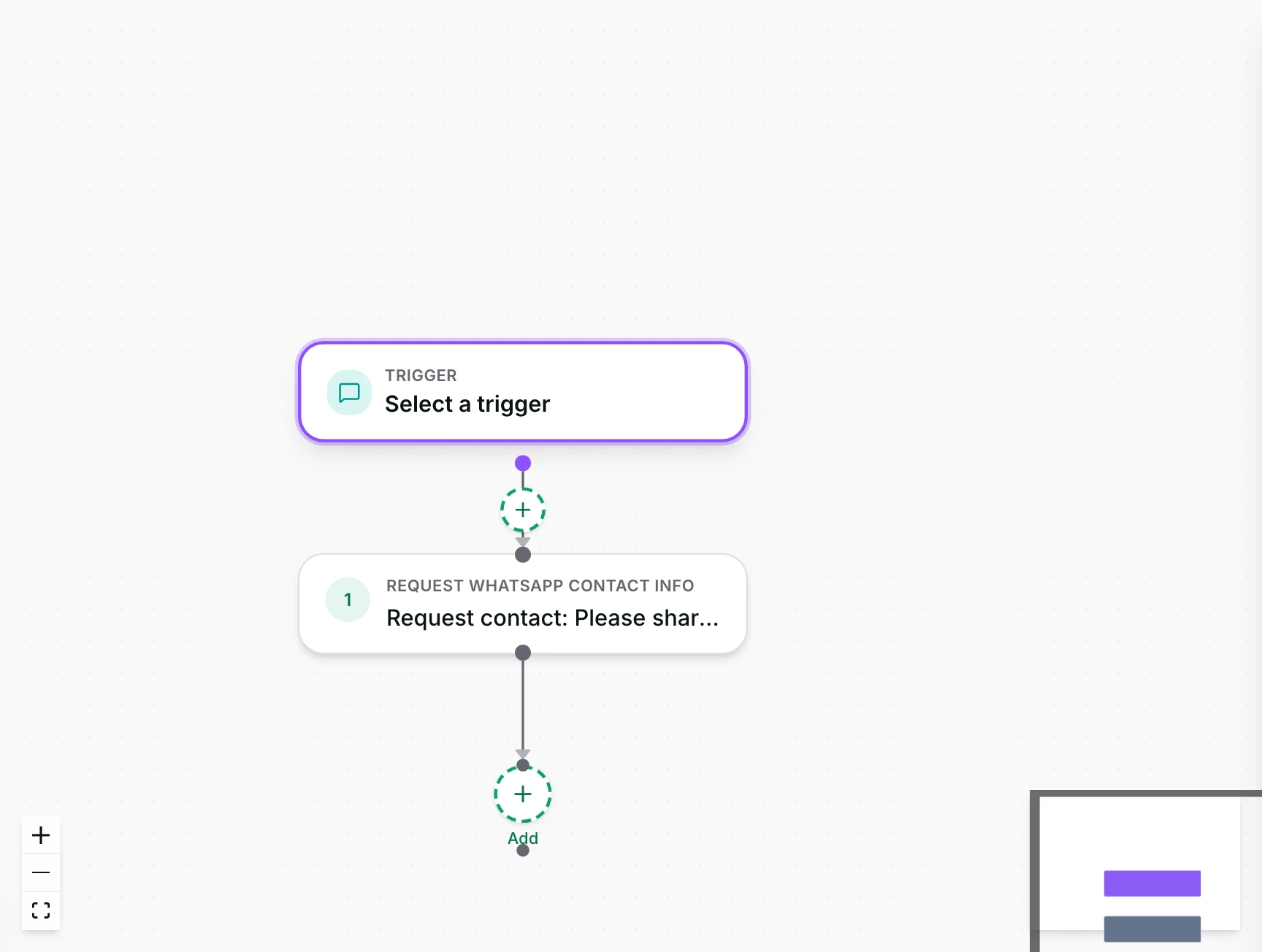
- Open the workflow and click + where the request belongs.
- Pick Request WhatsApp Contact Info.
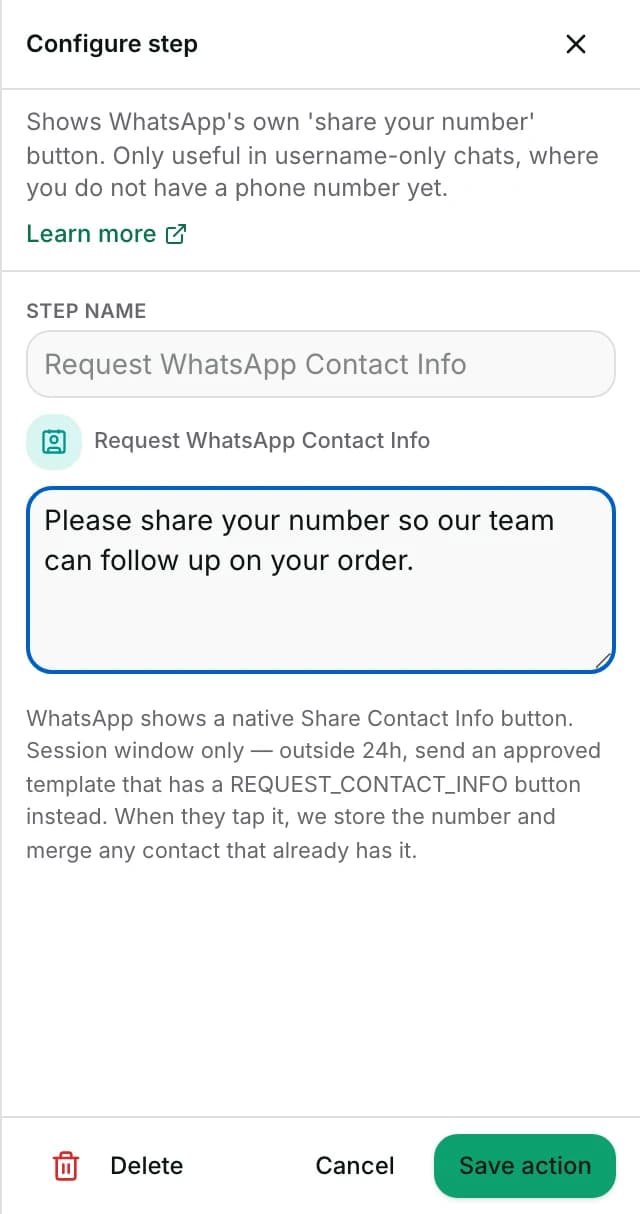
- Write the message shown above the button — for example, "Please share your contact info so we can follow up."
- Save the step. To publish: set Status to Published in the toolbar at the top of the editor, click Save, then confirm with Publish. The dropdown on its own changes nothing until you save.
Fields
- Text
- The message shown above WhatsApp's own Share Contact Info button.
How it works
- The step sends your text with WhatsApp's native contact-request button attached, going through the same send path as Send a Message. The same 24-hour session-window check applies before it reaches WhatsApp.
- When the customer taps the button and shares their own number, the inbound reply carries WhatsApp's own marker that this is the number the person confirmed as theirs.
- That marker is what tells it apart from a vCard they forwarded from someone else.
- Only a number carrying that marker is written onto the contact and used to look for an existing contact with the same phone to merge into. A hand-shared vCard — a contact card sent as an attachment, not a tap on this button — is shown in the conversation but never used to identify or merge the sender.
- Nothing here checks whether the chat is username-only before sending. The step sends the button on any WhatsApp conversation, whether or not a phone number is already on file for it.
When it fails
- Messaging window closed: the send is refused before it reaches WhatsApp, the same way Send a Message is. The execution log's line for this step reads
Messaging window closed — free-form send blocked, pointing you to an approved template instead. - The customer never taps the button: nothing else happens. The step itself already succeeded, because the button was shown. There is no separate failure for an un-answered request and no timeout of its own.
- The run has already moved on by the time — or if — the customer taps, so there is no later point in the same run that can react to whether they did.
- This step has no failure branch of its own; a failed send here does not stop the rest of the run — steps placed after it still happen.
Limits
- It does not pause the run to wait for the tap. The workflow continues immediately after the button is sent, the same turn, and nothing later in that same run can check whether the customer answered.
- A Condition rereads the contact fields the run started with, not a live copy — marketing consent is the one exception. So a Wait followed by a Condition on the contact's phone still sees the value from before the tap. Use Ask a Question instead if the flow needs to pause for an answer and branch on it.
- It only writes a number the customer confirmed by tapping the button, marked with WhatsApp's own confirmation that the tap happened. A vCard they share by hand is displayed in the conversation but ignored for merging — it could be anyone's card, not necessarily their own number.
- It is a WhatsApp-native button. On a chat that already has a phone number on file it still sends, even though the point of the step — capturing a first number — no longer applies there.
- It does not itself check the chat is username-only. Nothing prevents adding this step to any WhatsApp flow; whether it makes sense is for the workflow's author to judge.
Best practices
- Use it on a flow that started from a username-only WhatsApp chat — WhatsApp is the only channel this step sends on.
- Treat this as a one-way capture, not a question the flow can branch on. Nothing in this run can tell whether the tap happened, so do not design the steps after it as if they know.
Use cases
- A username-only WhatsApp customer asks about an order; the flow requests their number before continuing so a human can look it up in another system.
FAQ and troubleshooting
- Does the workflow wait for the customer to share their number?
- No. The step sends the button and the run continues immediately, and nothing later in the same run can check whether they tapped it. A Condition reads the contact fields the run started with, not a live copy (marketing consent is the one exception), so even a Wait placed after this step does not help. Use Ask a Question instead if the flow needs to pause and branch on an answer.
- The customer sent a contact card instead of tapping the button — did that count?
- No. Only a number shared by tapping WhatsApp's own button is trusted and written onto the contact. A forwarded contact card could belong to anyone, so it is shown in the conversation but not used to identify the sender.
- Can this reach a customer whose messaging window has closed?
- No. Like Send a Message, it is refused outside the session window. Meta has a template button that does the same thing, but Inchat's own template builder does not offer it. Create that template directly with Meta, sync it into Settings → Templates, and send it with Send WhatsApp Template.
Reading this with an AI assistant? Plain Markdown version.