Randomizer (A/B split)
Send each contact down one of several weighted paths at random; a fixed draw keeps each contact's path while the step and weights stay put.
Quick start
- Go to Automate → Workflows and open a workflow. Click + and pick Randomizer (A/B split).
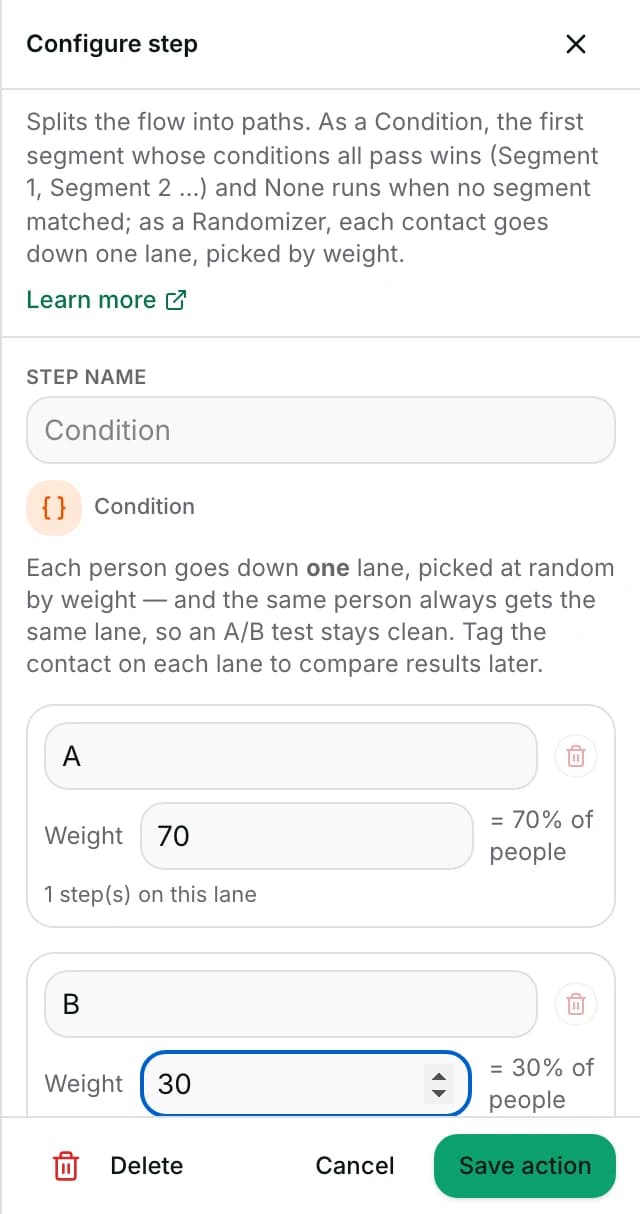
- Set a Weight on each path (shares, not required to total 100) — the traffic share updates as you type.
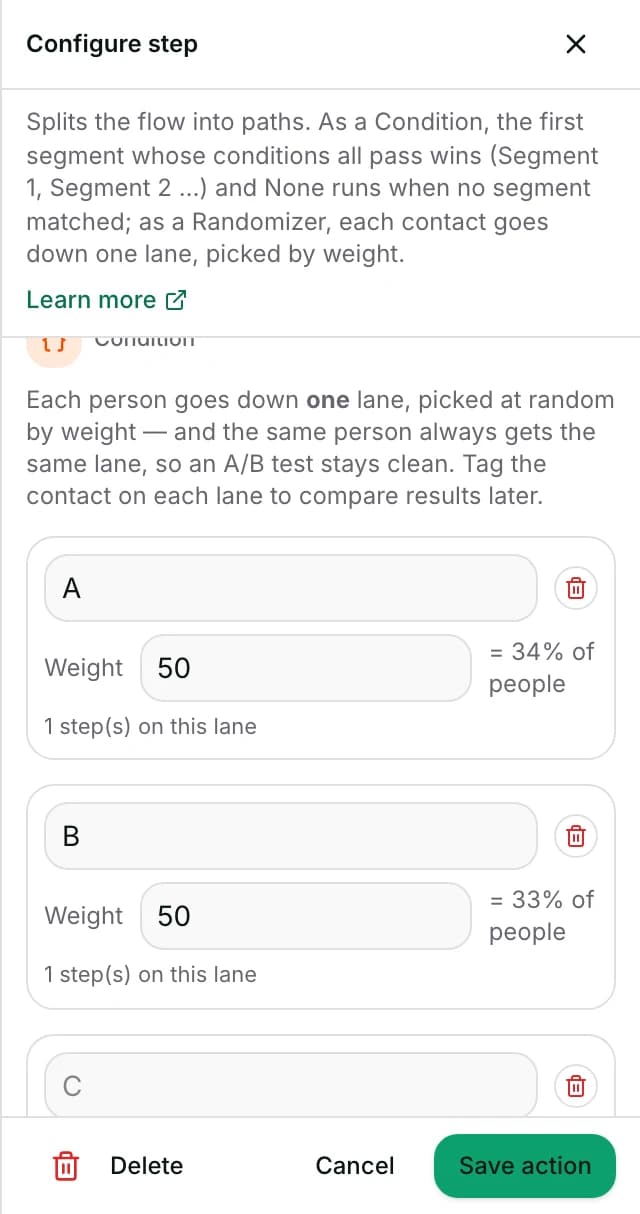
- Click + Add lane for a third path, for an A/B/C test.
- Optional: name each path (A, B, C… if blank). To see results later, put a tag step inside each path.
- Set Status to Published in the top toolbar, Save, confirm Publish. Agents: ask an owner or admin.
Watch out
- Editing a path's weight, or adding or removing an earlier step, can move an already-run contact to a different path next time.
Details
Getting here
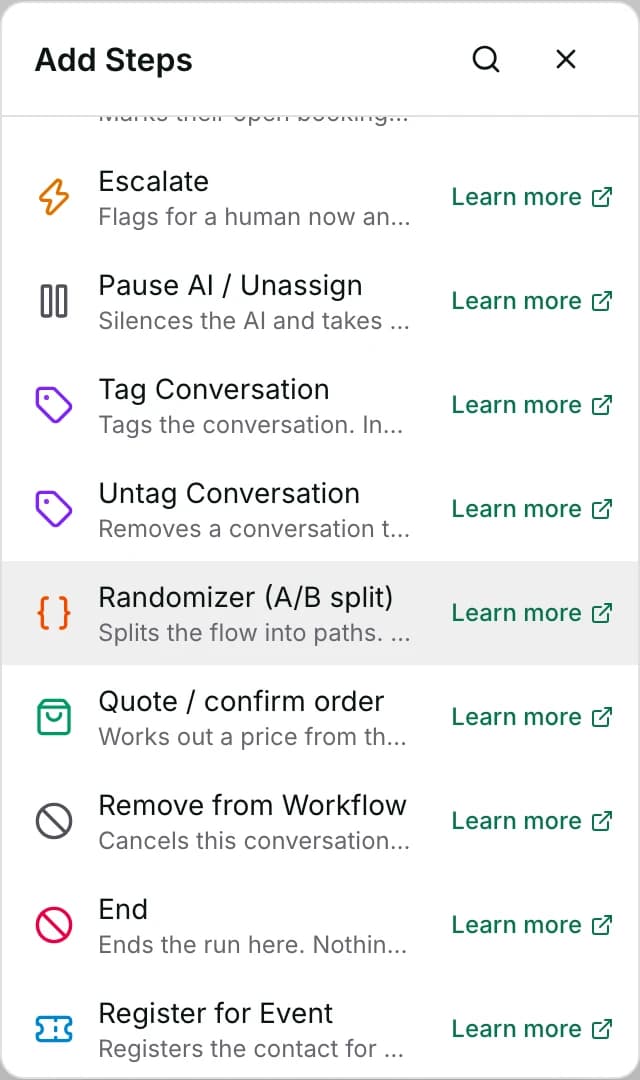
Automate → Workflows, open a workflow, click + on the canvas, then pick Randomizer (A/B split) under Add Steps.
Before you start
- An owner, admin or agent can add this step and save the workflow. Publishing it is an owner or admin action.
- Building and running workflows depends on your plan; see pricing.
- Nothing outside Inchat has to be connected — the split needs no field of its own to work from.
Set up
- Open the workflow and click + where the split belongs.
- Pick Randomizer (A/B split).
- Set a Weight on each path — the share of traffic shown next to it updates as you type.
- Two paths are the minimum; + Add lane adds more for an A/B/C test.
- Optionally name each path; an unnamed one is labelled A, B, C… in order.
- Save the step. To publish: set Status to Published in the toolbar at the top of the editor, click Save, then confirm with Publish. The dropdown on its own changes nothing until you save.
Fields
- Weight
- A path's share of traffic relative to the other paths' weights — not a fixed percentage of the whole. Two paths weighted 20 and 80 send roughly a fifth of contacts to the first.
- Default: 50 on each of the two paths a fresh Randomizer step starts with
- Limits: 1–100 per path in Configure step. A weight that is missing, zero or negative is treated by the workflow as 1, never as zero traffic. This only comes up for a path built some other way than through + Add lane, since Configure step itself always writes a real number.
How it works
- Each run draws one number and picks the path it falls into, in proportion to the paths' weights — every contact goes down exactly one path, never more than one and never none.
- The draw itself is sticky: it is worked out from the workflow, this step's position, and the contact — not a fresh dice roll each time.
- So the same contact reaching this step again the same way — a reopened conversation, a second trigger fire — produces the same fixed number every time.
- Reaching it by a different route in the same workflow — directly one time, by way of a Jump To another time — computes a different position.
- So that guarantee does not carry across the two routes.
- That fixed number is then matched against the paths' current weights to pick one, every time the step runs.
- So the number stays the same for a given contact, but which path it lands on can still change if the weights are edited later.
- It can also change if a step is added or removed earlier on the canvas, which shifts this step's position — and so the fixed number itself.
- The percentage shown next to each path's weight is that path's share worked out from every path's weight together, rounded to whole numbers that always add up to 100.
- The path taken is written to the run as
split.lane— the path's own label, or its letter if it has none. - Put a condition on that field, or a tag inside each path, to read back later which variant a contact saw.
When it fails
- A Randomizer step does not fail at runtime — every contact who reaches it lands on some path, so there is no error state to read for this step in the Activity tab.
Limits
- The split is not re-rolled per message or per visit within an unchanged workflow — it is fixed to the contact for this exact step.
- That holds as long as neither its weights, its position on the canvas, nor the route the run takes to reach it (direct vs. via a Jump To) change.
- Mid-test switching for an individual contact is not something the step offers on its own.
- It only chooses a path. It sends nothing to the customer and changes nothing about the conversation by itself — whatever a variant does comes from the steps placed on its path.
- There is no built-in reporting for a split's results beyond what you build yourself: tag each path (or read
split.lanein a Condition) and compare with your own report or segment. - Changing a path's weight, or adding or removing a step earlier on the canvas — which moves this step — can move a contact who already ran it.
- That contact can land on a different path the next time they reach the step.
- The draw's fixed number does not guarantee a fixed path once either of those changes.
Best practices
- Tag the contact (or the conversation) on each path so the split shows up somewhere you can filter or report on later.
split.lanealone is only visible to a later Condition in the same run.- Keep the number of paths small. A three- or four-way split takes proportionally longer to reach a result you can trust than a clean A/B.
- Once a test is live, avoid editing its weights or moving other steps earlier on the same canvas before it.
- Either can reshuffle contacts who already ran through it onto a different path on their next pass.
- That muddies a comparison that depends on each contact staying on one path.
Use cases
- An opening message is split 50/50 between two openers, each tagging the contact with which one they saw, to compare reply rates later.
- A pricing nudge is tested at three weights — a control path at 60% and two variants at 20% each — before committing to one for everybody.
FAQ and troubleshooting
- Will the same customer ever see two different variants?
- Not from the same step reached the same way — the draw is sticky per contact for a given position in the workflow. But editing the path weights, moving the step by editing what comes before it, or reaching it a different way can each land that same contact on a different path. That last case means directly one time, via a Jump To another time.
- Do the weights have to add up to 100?
- No. They are shares relative to each other; Configure step shows the resulting percentage next to each one, always rounded to add up to 100.
- Can I add a path for people who match none of the others, like a Condition's None path?
- No — every contact who reaches a Randomizer lands on a weighted path. There is no equivalent of None in random mode.
Reading this with an AI assistant? Plain Markdown version.