Assign To (AI)
Name one AI agent to answer this conversation from now on, instead of whatever would otherwise decide.
Quick start
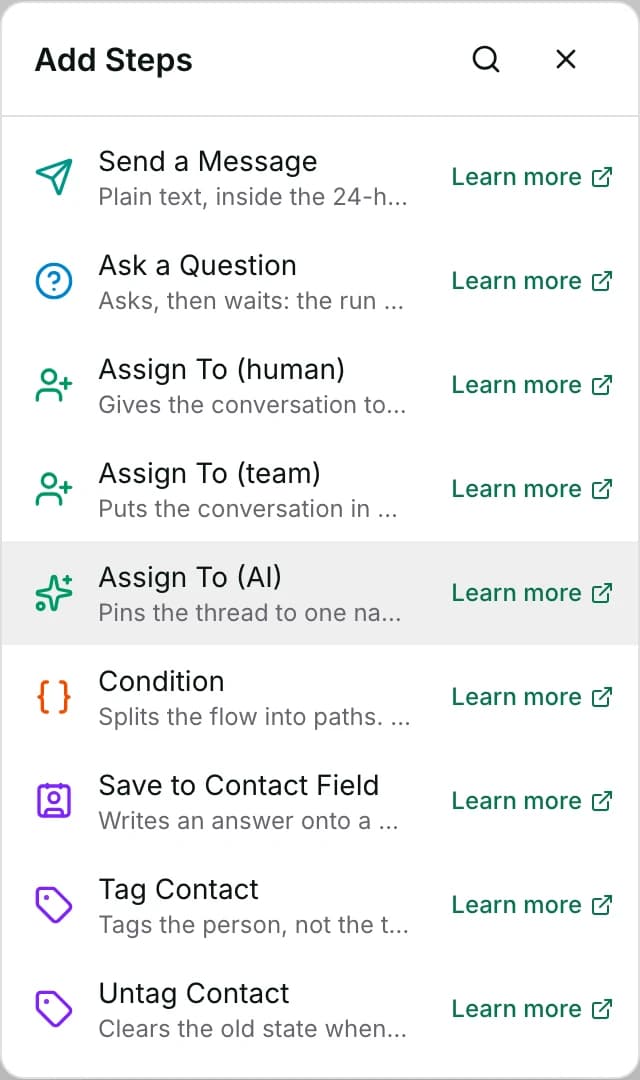
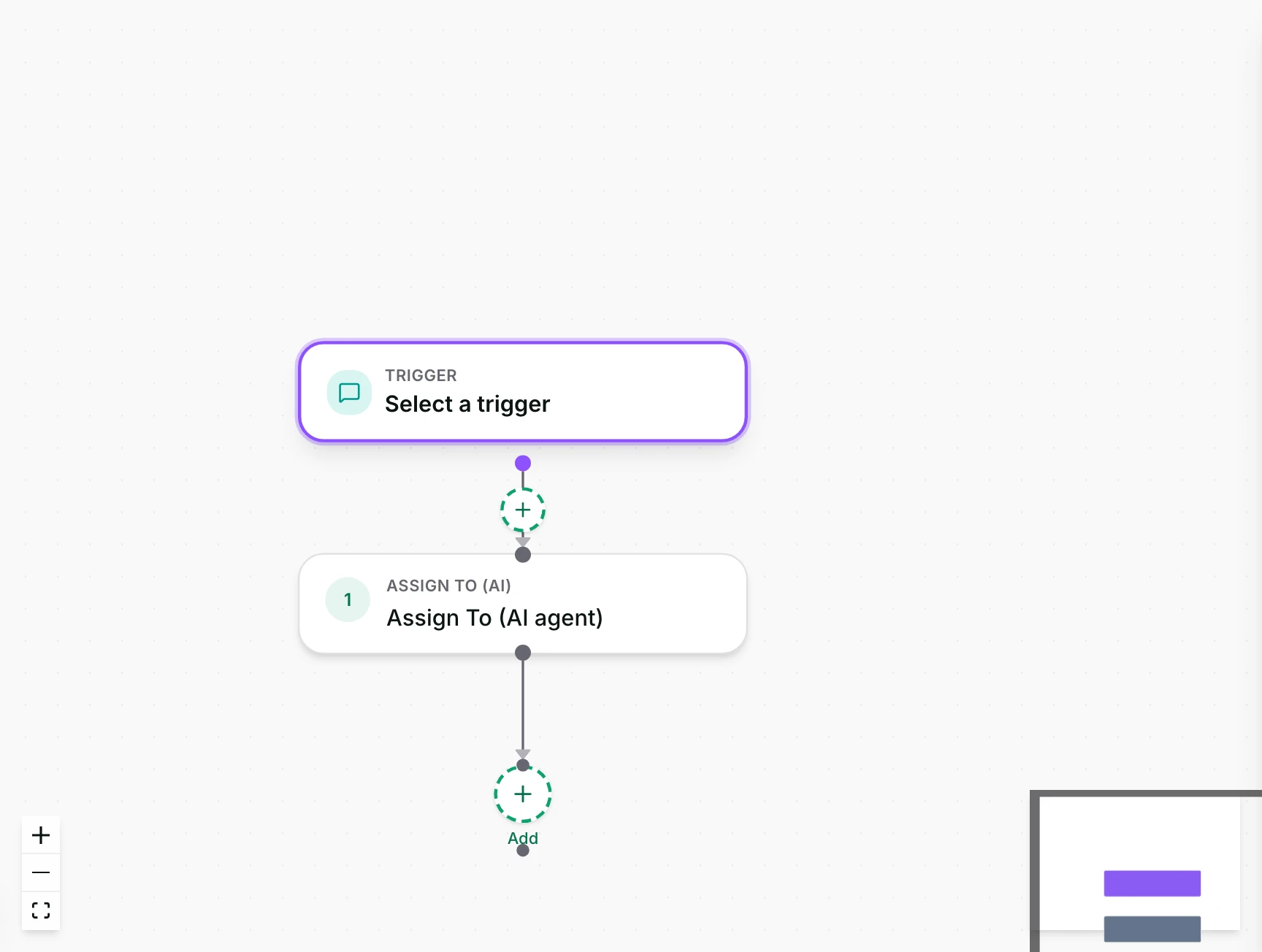
- Go to Automate → Workflows and open a workflow. Click + and pick Assign To (AI).
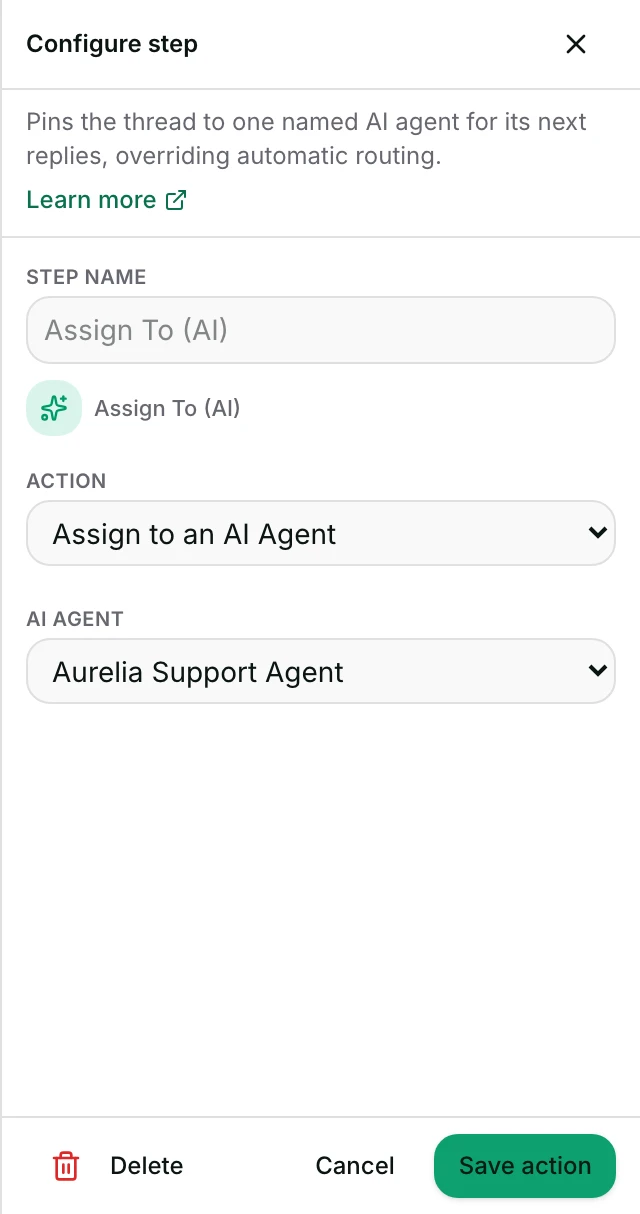
- Under AI Agent, choose the agent that should answer from here on.
- It only pins the agent; nothing is sent until the customer next writes in.
- Set Status to Published in the top toolbar, Save, confirm Publish. Agents: ask an owner or admin.
Watch out
- If a teammate has already taken over the conversation, or the customer asked for a person, this step does nothing and the workflow stops here.
Details
Getting here
Automate → Workflows, open a workflow, click + on the canvas, then pick Assign To (AI) under Add Steps.
Before you start
- An owner, admin or agent can add this step and save the workflow. Publishing it is an owner or admin action.
- Building and running workflows depends on your plan; see pricing.
- At least one enabled AI agent must already exist in the workspace for this step to name.
- Nothing outside Inchat has to be connected. The step only writes to the conversation.
Set up
- Open the workflow and click + where the assignment belongs.
- Pick Assign To (AI).
- Under AI Agent, choose the agent that should answer this conversation from here on.
- Save the step. To publish: set Status to Published in the toolbar at the top of the editor, click Save, then confirm with Publish. The dropdown on its own changes nothing until you save.
Fields
- AI Agent
- The named, enabled AI agent this conversation is pinned to.
- Limits: Only enabled agents in this workspace are offered. There is no timeout, distribution or online/offline setting on this step.
How it works
- On a thread this step is actually allowed to touch, it makes this AI agent answer the conversation from now on, and marks the AI as the thread's owner.
- So the next inbound message is answered by this agent rather than by whatever would otherwise be selected — see Limits for when it is not allowed to touch it.
- It also clears a hold placed earlier in the same conversation by a Pause AI / Unassign step.
- This is one of three ways that hold is cleared — the other two are an operator clicking Resume AI on the thread, or picking a specific AI agent in the conversation's own settings.
- It sends the customer nothing by itself. The named agent answers only when the customer next writes in.
When it fails
- The named agent no longer exists, or has since been disabled, in this workspace.
- The step fails with “no AI agent with id … in this workspace — it may have been deleted”, and the conversation's agent is left as it was.
- The thread is already human-owned, or already paused because the customer asked for a person: the step is refused before it writes anything.
- The conversation's agent and owner are left exactly as they were, and the run stops there rather than continuing to a later step.
- The conversation changed while the step was running — for example, a teammate took it over at that moment: the step stops and the run does not continue past it.
- You read the reason in the workflow's Activity tab: pick the run under Execution log and the failed step carries its own line of text.
- Saving is refused if no AI agent is chosen — Pick an AI agent for the “Assign to AI” action.
Limits
- It only takes effect on a thread that is not already human-owned or already paused for a customer-requested reason.
- On one of those, the step is refused and the run stops rather than overriding the hold — see When it fails.
- It cannot be used to take a thread away from a person or from that kind of pause.
- It clears a hold placed by an earlier Pause AI / Unassign step, but never the hold set when the customer asks for a person or an Escalate step runs.
- If the customer asked for a person, or an Escalate step ran, this does not turn the AI back on.
- A later, separate run meeting that hold is refused outright — the same refusal Watch out describes.
- Later in the same run as the Escalate, this step is logged as not run, and the thread stays a person's until someone clicks Return to AI.
- It has no timeout, no distribution and no online/offline concept — it names one agent and either succeeds or is refused; there is no other setting on this step.
- It does not check anything about the customer's channel or window — it only changes which agent answers, not whether a reply can currently be sent.
Best practices
- Use this step when a specific agent — one built for a particular product line or language — should take over from here, rather than whichever agent the conversation would otherwise use.
- Follow it with an AI Reply step on the same path if the workflow itself needs the named agent to answer immediately.
- This step only sets who answers next, not that a reply happens now.
Use cases
- A Condition step detects the contact asked about a specific product line and hands the conversation to the AI agent built for it.
- A conversation paused earlier in the same flow by Pause AI / Unassign is handed back to an AI agent once a hand-off to another workflow has finished its own work.
FAQ and troubleshooting
- Does the AI answer right away when this step runs?
- No. It only pins the agent; the agent's first reply happens on the customer's next inbound message.
- I have this step in a flow but the AI still is not replying.
- Check whether the thread is already human-owned or already paused because the customer asked for a person — on either of those, this step refuses to run at all rather than overriding the hold. It only ever clears the separate hold Pause AI / Unassign sets. Even when this step works, if a teammate replied in the last few hours the AI stays quiet for a while. It resumes by itself after that, or when someone clicks Resume AI.
Reading this with an AI assistant? Plain Markdown version.