Add Notion Record
Add one page to a Notion database you shared with Inchat — a record per lead, booking or order.
Quick start
- Connect Notion under Settings → Integrations, and tick the database on Notion's screen.
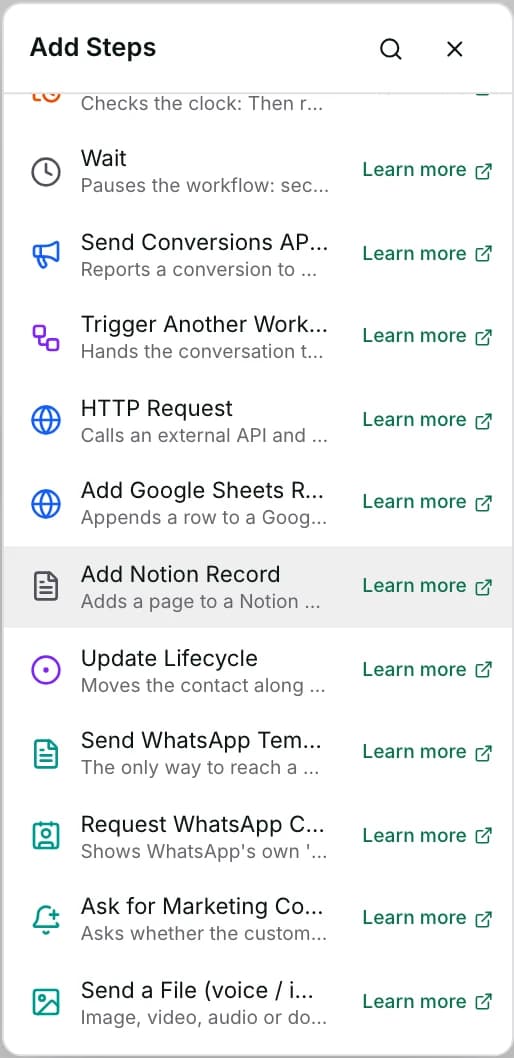
- Go to Automate → Workflows and open a workflow. Click + and pick Add Notion Record.
- Paste the database's link and click Load.
- Fill in Record to add, one box per property, text or
{{…}}placeholders. - Set Status to Published in the top toolbar, Save, confirm Publish. Agents: ask an owner or admin.
Watch out
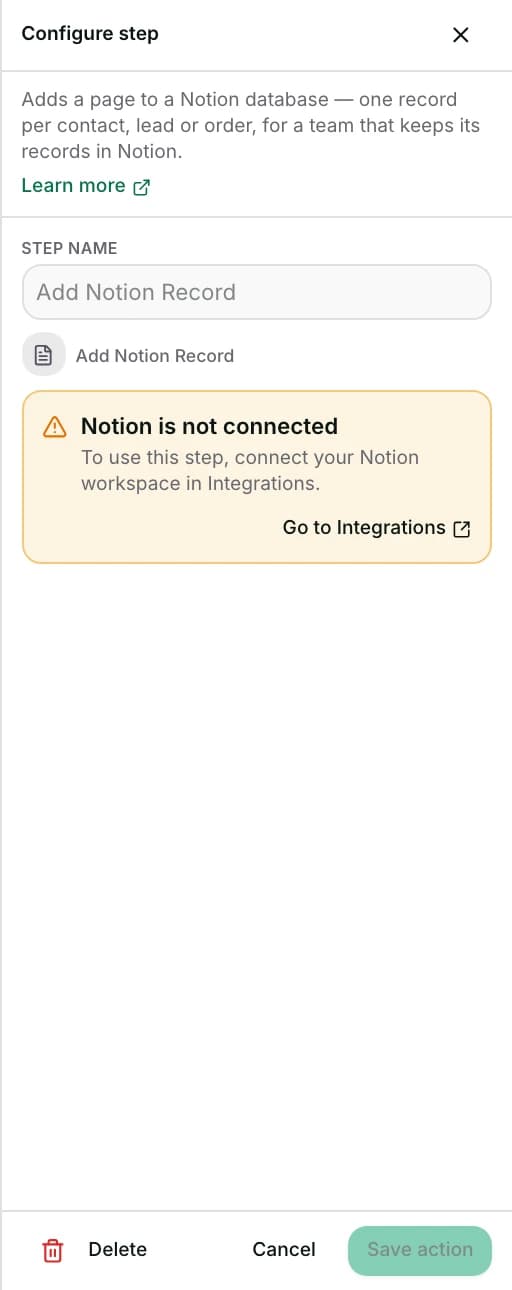
- It publishes even with nothing connected — a step left that way fails every time it runs, until Notion is connected.
- Inchat only sees databases you shared with it in Notion. A database added later needs sharing too: ••• → Connections → Inchat.
Details
Getting here
Automate → Workflows, open a workflow, click + on the canvas, then pick Add Notion Record under Add Steps.
Before you start
- An owner, admin or agent can add this step and save the workflow. Publishing that workflow — the thing that makes it run on live conversations — is an owner or admin action.
- Building and running workflows depends on your plan; see pricing.
- Notion connected in Settings → Integrations by an owner or admin, with the target database ticked on Notion's sharing screen. Until connected, the drawer shows a connect card instead of the fields.
- The connection is per workspace. Anyone who can build a workflow here can point this step at any database the connection was given — not only the one it was set up for.
Set up
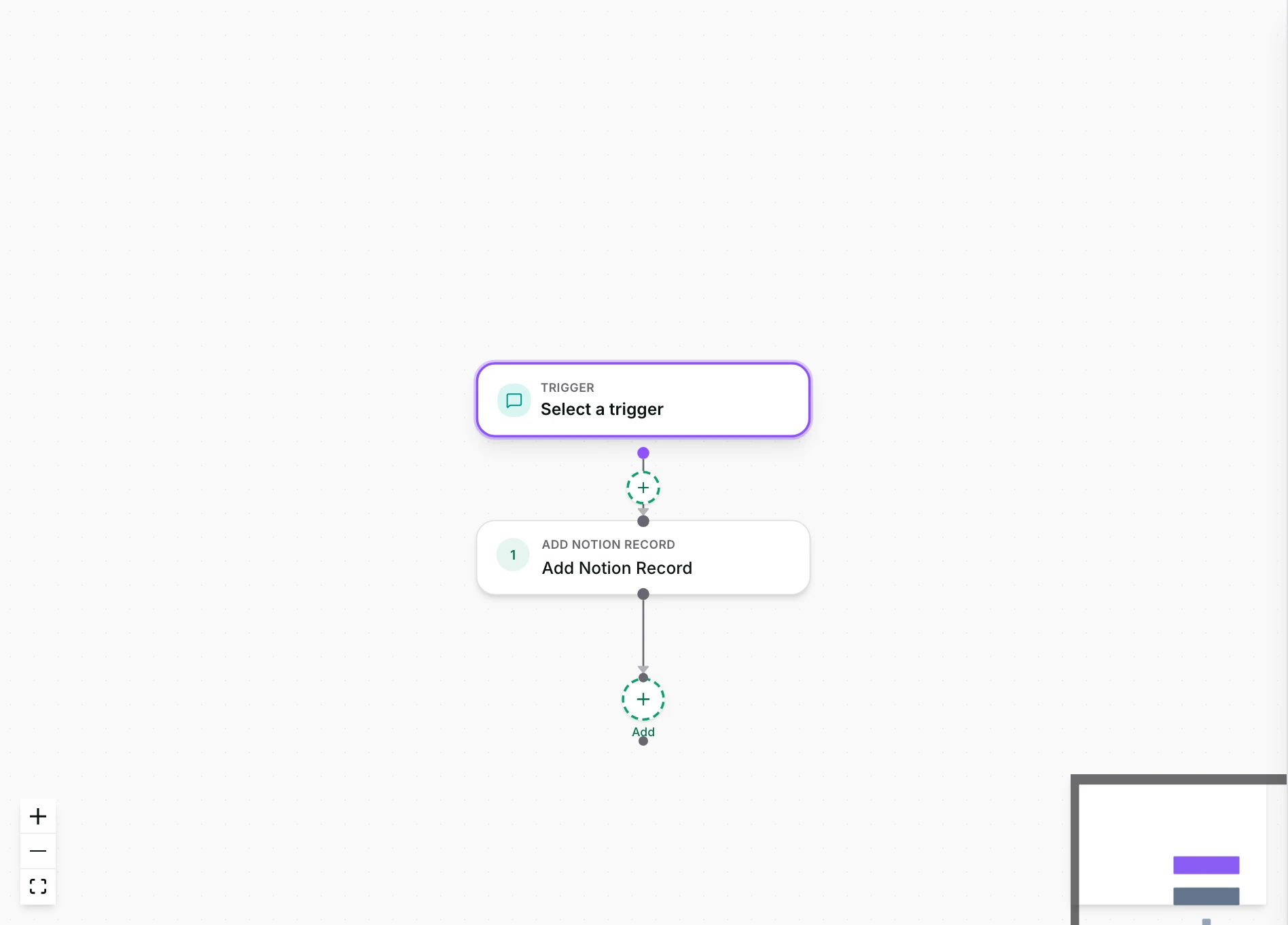
- Open the workflow and click + where the record belongs.
- Pick Add Notion Record.
- Paste the database's link — the address of the database page in Notion — and click Load. This reads its title and properties.
- Fill in Record to add: one box per property, with text or
{{…}}placeholders. Leave a box empty to leave that property blank. - Save the step. To publish: set Status to Published in the toolbar at the top of the editor, click Save, then confirm with Publish. The dropdown on its own changes nothing until you save.
Fields
- Notion database link
- The database's own URL. Load fetches its title and properties.
- Record to add
- One box per property, labelled with the property's name and type. Each box takes plain text, or click in and use the
{{…}}picker for a variable like{{contact.first_name}}or the customer's last answer. - Limits: Only properties that take a typed value are offered: title, text, number, select, multi-select, status, date, email, phone, URL and checkbox.
- When this contact already has a record
- Add a new record every time adds a page, as before. Pick a property — usually the phone number — to update the page that already has the same value instead, and add one only when none does.
- Limits: Only title, text, phone, email, URL and number properties can be matched on, and the value for it must not come out empty when the step runs.
How it works
- What leaves Inchat, and when: the instant the step runs, Inchat reads the database's property types, then adds one page with the values you configured, using this workspace's Notion connection.
- Every
{{…}}placeholder is resolved before anything is sent. - Values go into properties by NAME. Moving a property in Notion changes nothing; renaming or deleting one makes the step fail with that property's name until you load the database again.
- Each value is written as its property's type, read fresh on every run. A number property takes
1,250.50; a multi-select takes a comma-separated list; a checkbox takes yes or no. - A select or multi-select value Notion has not seen becomes a new option, the same as typing it into Notion.
- Text longer than 2,000 characters is split into several pieces of the same cell, so Notion accepts it.
- With a match property, the step first asks Notion for a page whose property equals the value, and updates that page's mapped properties; properties you left empty keep what they had. No match: a new page is added.
When it fails
- Notion is not connected for this workspace: the step fails with Notion is not connected — connect it in Settings › Integrations., before any request is sent.
- The database was never shared with Inchat, or the sharing was removed: the step fails with a message pointing to ••• → Connections in Notion.
- A property you mapped no longer exists: the step fails naming the property, and asks you to load the database again.
- A value does not fit its property — words in a number property, a date nobody can read, “maybe” in a checkbox: the step fails naming the property and the value, and no record is added.
- Notion refused the connection and it could not be renewed — usually the connection was removed in Notion: Settings changes to Needs reconnecting, and the step fails until you reconnect.
- A failed record does not stop the run: the step shows as failed in the run's Activity tab and the flow moves straight to the next one.
Limits
- It publishes even with nothing connected. The connection card blocks editing the fields in the drawer, but not saving or publishing the workflow.
- It can add or update one page; it cannot delete a page or read a value back into the conversation.
- Two runs for the same new contact at the same moment can both find no record and both add one. Delete the extra page; later runs update one of them.
- Updating needs Notion's Update content permission on the connection. A connection made before that was asked for fails with a message to reconnect Notion.
- People, relation, files, formula and rollup properties cannot be filled by this step.
- A database with several data sources is written into its first one.
- A record is capped at 50 values, each up to 4,000 characters.
Use cases
- Add a record for every lead that answers an Ask a Question step, so sales can work the pipeline in the Notion board they already use.
- Log every confirmed booking to the team's Notion calendar database, with the date in a date property.
- Keep one record per customer, matched on phone, and let the AI Agent update it as the chat goes: AI Agents → Actions → Sync to Google Sheets / Notion uses this same step.
Reading this with an AI assistant? Plain Markdown version.